

Everyone knows that Google Search Console is a very powerful tool!!!
But… not everyone can use GSC for SEO.
Only 80% of people can use GSC for more than just checking metrics like clicks and impressions.
However, there is nothing wrong with checking those metrics…
But… there is a fact that you must understand is, Google Search Console is much more than that.
And if you are only using it just to check clicks and impressions on your website… believe me, you are missing a lot of opportunities.
You can use Google Search Console for SEO(Search Engine Optimization).
Let’s see how to use Google Search Console

Unlock Your Free SEO Audit Now
Unlock your website’s full potential! Get a FREE SEO Audit with 60+ checks. Don’t miss insights for online success.
Get a Free AuditWhy Is Google Search Console Important For SEO?
Google search console mainly plays an important role in communicating the data between the Google and SEO person.
It shows the data of how Google is behaving with your website.
Also, shows your website’s SEO insights for both the content level and the technical SEO level.
How To Use Google Search Console For SEO
Here are some tips to use Google Search Console for SEO:
Use Google Search Console To Find Keywords
To find keywords from Google Search Console to optimize the content or write new blogs…
You need to get keywords worth targeting.
Let me explain…
If you are targeting two keywords for a particular blog…
One keyword has a higher search volume but has less CTR(click-through rate).
So, there is NO USE in targeting such GSC keywords
But, on the same side… let’s say there is one more keyword that has a low search volume but has a high CTR…
So, of course…. That is beneficial to target such keywords.
But, the main question here arises is…. “How do you find such keywords from GSC?”
I can explain:
One of the most famous SEO & WEB STRATEGIST, Lynn Hericks says,
“optimizing and expanding old blogs on your site by using keywords that are already working!”
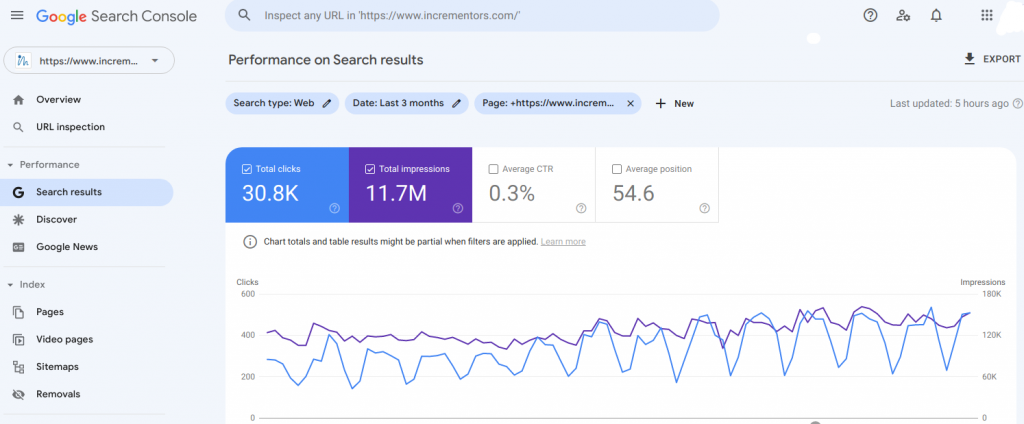
This is where you will find the keywords that are worth targeting for SEO.
“In the Performance section of Google Search Console, filter your queries by page to see what terms a blog already ranks for—find relevant keywords that rank on average in positions 8-20 (a term that you weren’t necessarily targeting directly, but your content still shows up for).”
Like This…
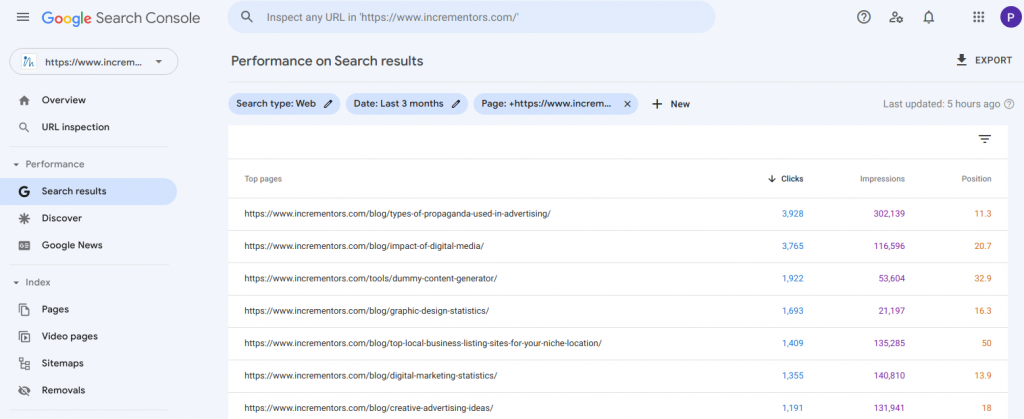
Now, check out some of those terms on which your page is ranking for position from 1-20…
These are the relevant keywords that need to be focused on.
This is the best way to optimize your blog which may get you highly relevant and organic traffic.
Read More: Tips For SEO Keyword Research: Tools & Examples
Check The Crawling And Indexing Of The Pages
The indexing and crawling can be checked by Google search console for SEO.
Do you know even before ranking, your pages get crawled and indexed by Google?
If your pages are not even indexed, what’s the point of expecting the ranking?
see… this is how it works.
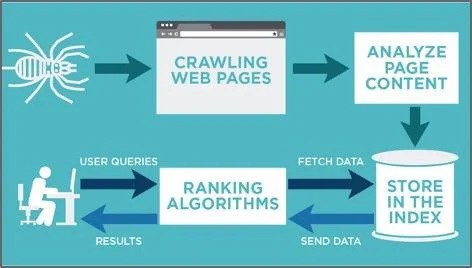
Now, you might be wondering: how would you get to know if your page got crawled and indexed by Google or not?
Well…
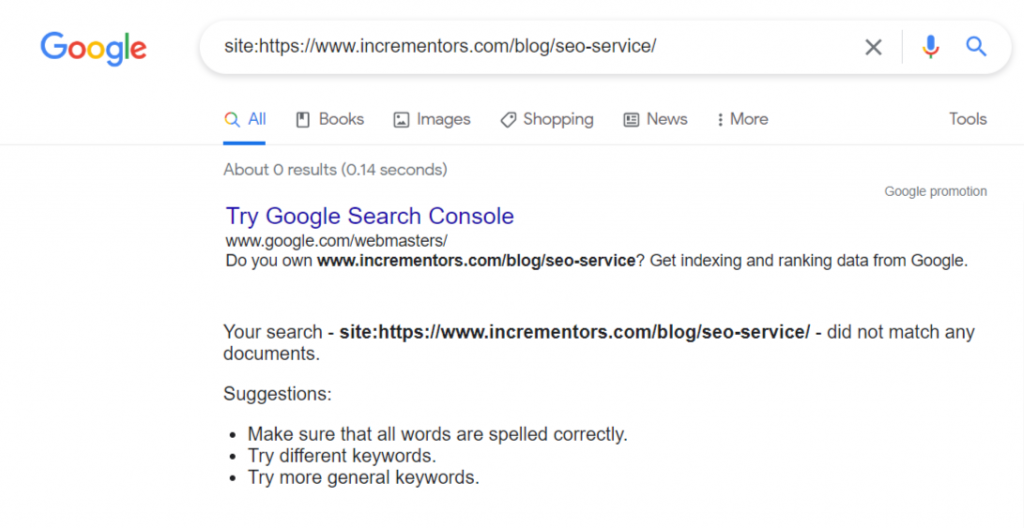
The one way is, you simply take the URL and put “site:” before the URL and search it on Google…
Like This:
If you see results like this, that means the page got indexed

And… if you see the result like this, the page is not indexed
However, you can also check it from Google Search Console.
This is how it is done:
Check Below:
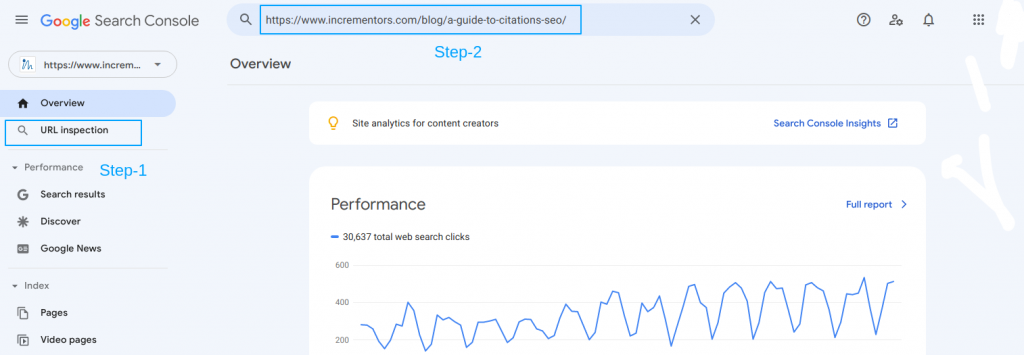
Step 1: Click on URL inspection
Step 2: Paste the URL above
If the URL is indexed, it will be shown like this:
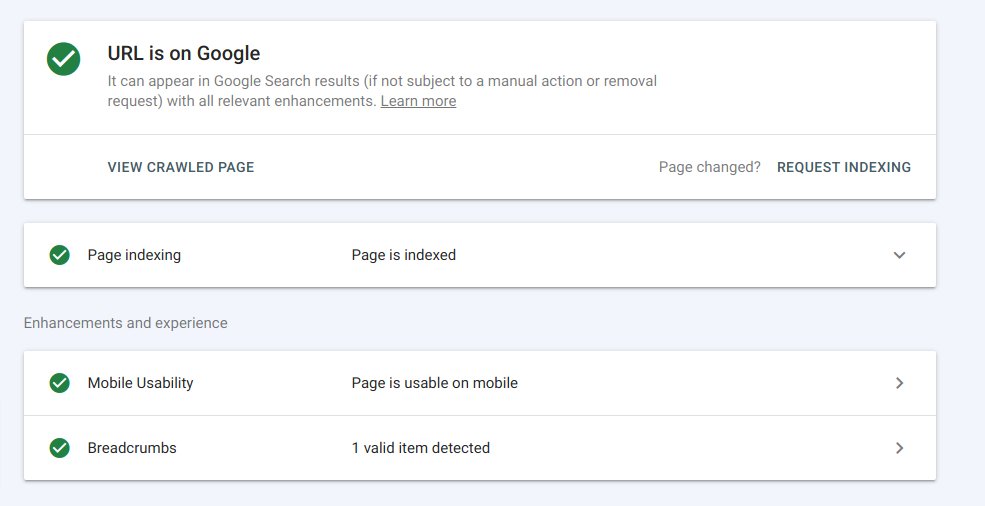
If it is not indexed… It will be shown like this:
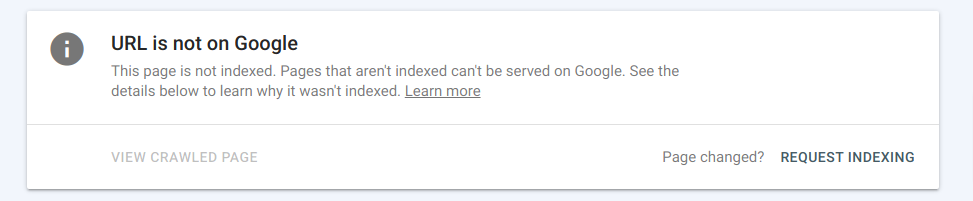
And… if you see the interface like this… you can add your web page to the indexing queue by clicking on the button REQUEST INDEXING.
It is that simple.
Add Sitemap In GSC To Make Google Read Your Content
This is also how you can use Google Search Console for SEO.
Let me explain:
Do you understand why we add sitemaps…?
Well, we add citations to let Google know where are the important parts in our website.
It also suggests the Google crawler how to crawl the blog.
I personally recommend that everyone must submit their sitemaps to Google Search Console.
Submitting the sitemap is quite easy.
To do that,
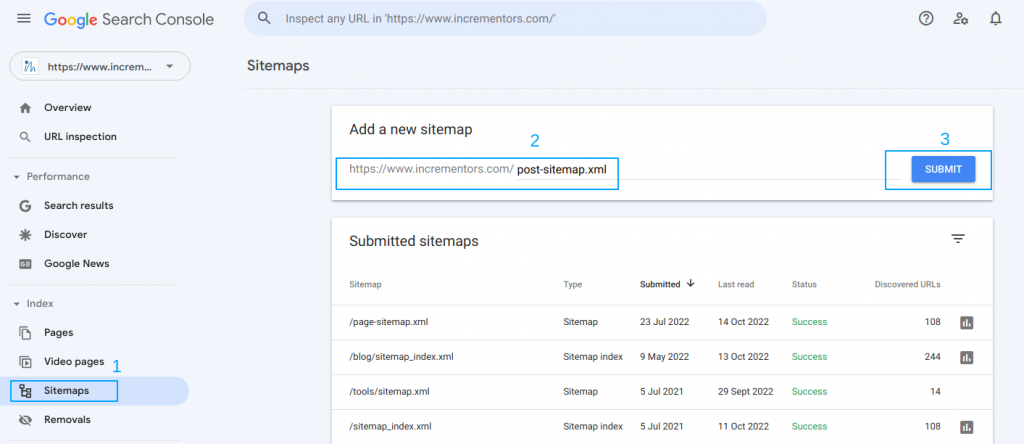
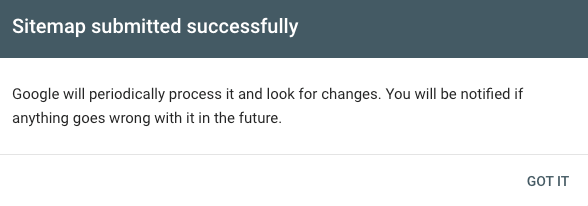
You just need to click on sitemaps, then type the sitemap that you wish to submit and finally just click on the “SUBMIT” button.
This is how we submit images as well.
And, finally… you will get a message like this.
Find Out What Type Of Content Will Bring Traffic And Backlinks
As you must have known that backlink is the most important factor for rankings and traffic.
So, you must have more backlinks in order to get high traffic.
Now, you might be wondering: How can I use Google search console for SEO backlinks?
But, believe me… you can!
Let me explain:
And before you work on your content strategy, it is important to understand what type of content getting you backlinks.
But no worries!
GSC can help you find such content.
Let me show you how:
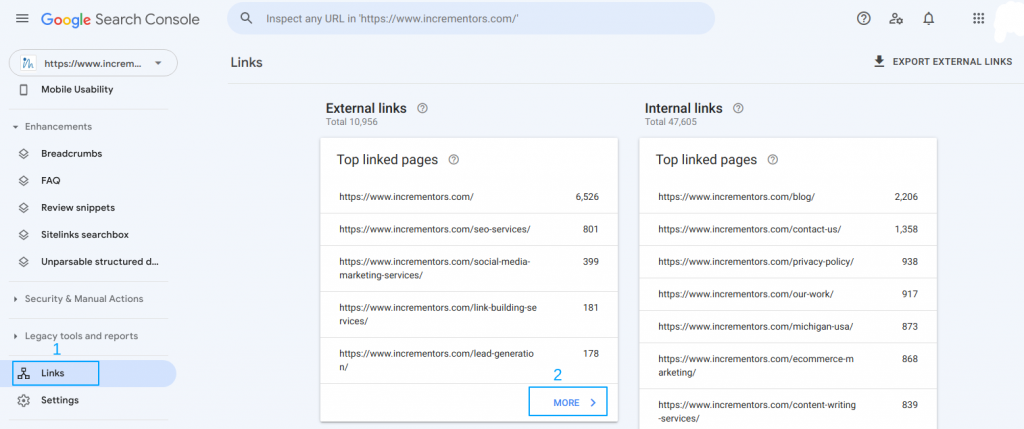
Click on the “Links”
And then on…. “More” in External Links
Here you will the pages on which you have got high backlinks.
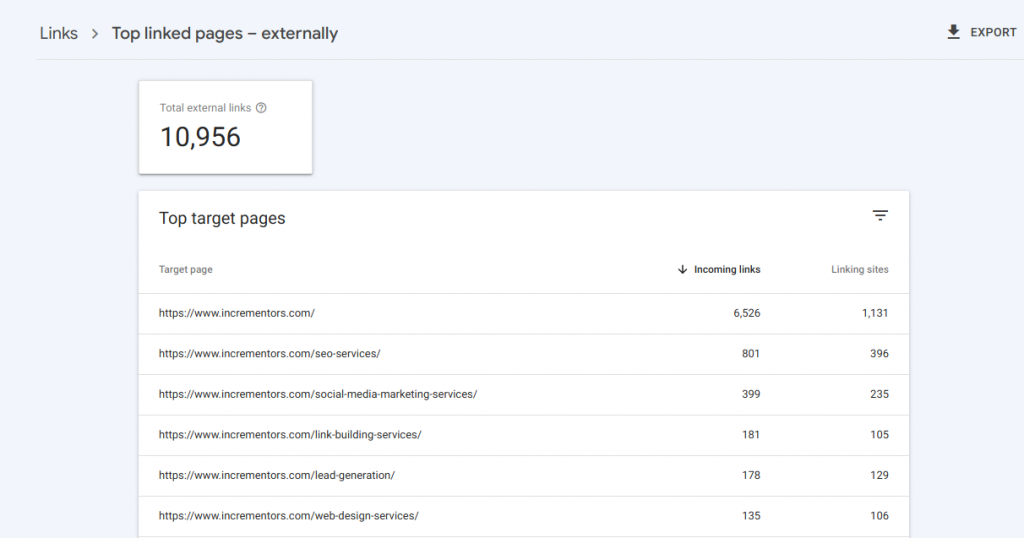
Check the image below:
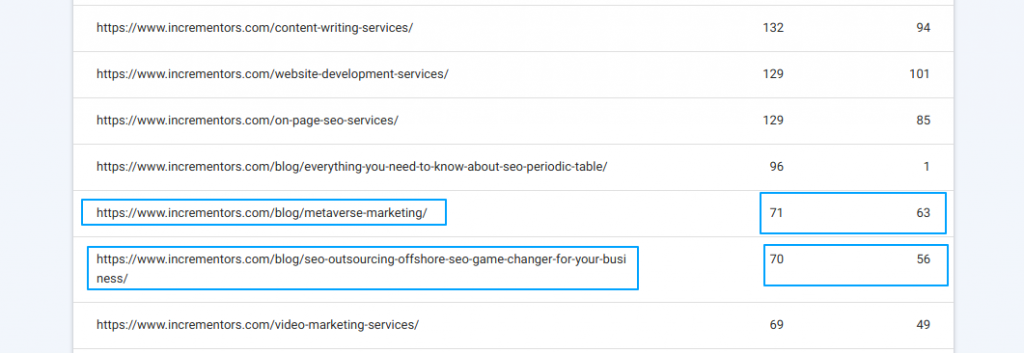
So…
This is the right platform to perform backlink analysis.
Find Out The Security Issues
Google search console can even notify you if anything bad happens with your website.
Bad means… any security issue.
If your website is hacked… you will receive a notification in a SECURITY ISSUE in your Google Search Console.
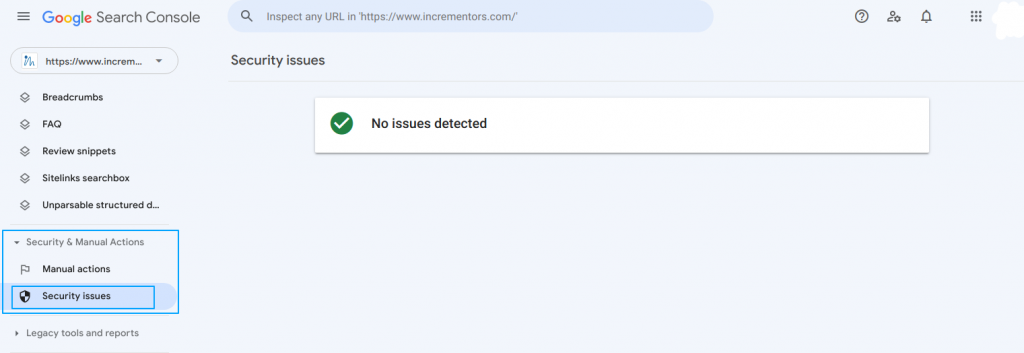
That notification would be enough to tell you if your website has been hacked with SPAM or MALWARE and helps you take the right steps to fix such issues.
For better things… you can contact your hosting provider to fix such issues.
Find Interlinking Opportunities
We have already discussed the Link reports above.
But… now we going to discuss interlinking opportunities in Google Search Console for SEO.
Here is the thing that you should keep in your mind is…
GSC doesn’t provide information about how those links affect your website.
Here is how you will find it.
When you click on “Links”…
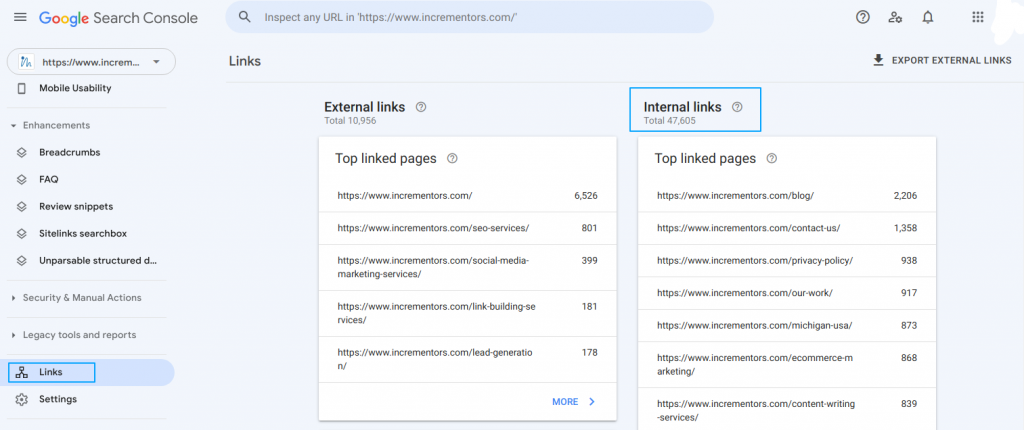
You will see lists of both “External links” and “Internal links”
By clicking on internal links, you will get to see the list of pages with internal links in ascending order.
Read More: Interlinking For SEO: Everything You Need To Know About It
Find Negative Keywords To Reduce The Bounce Rate
Now, this is one of the best thing that you can do is, you can use Google Search Console for SEO to find negative keywords.
You might be wondering, “what’s this called negative keyword?”
Well…
If you have examined the GSC carefully, you must have seen there are some Google Search Console keywords you are raking on… but in reality, you shouldn’t.
Yes… that happens.
Let me show you.
Here is a blog of mine… which is just published.
Step By Step Guide To Perform Keyword Research For Local SEO
And when I checked it on Google search console to see which keywords it is ranking on…
I see keywords like this.
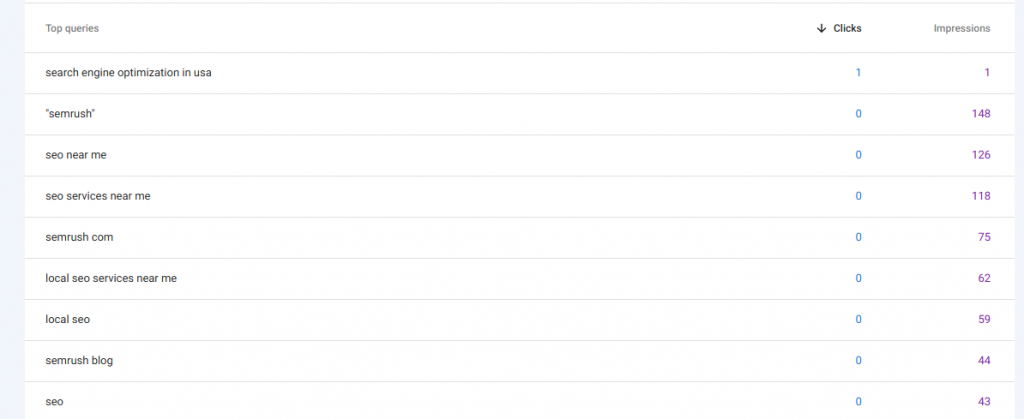
These are the Google Search Console keywords my blog is not relevant to…
So, what I can do is, I can write a new blog targeting these keywords.
But… why would I do that?
I am going to do that because I am getting high impressions on such keywords.
These are the GSC keywords my website is ranking on.
So, I can write a new blog or create a new page targeting those keywords.
That’s how we use negative keywords.
Find Out The Page Performance Issues
Everyone knows High-quality content is important in order to rank in Google SERP.
But…
There are other things that matter along with high-quality content and that is, USER EXPERIENCE.
Anything that disturbs the user experience will definitely downrank you in Google SERP.
No matter if it is page responsiveness, loading speed, and page experience.
Google Search Console makes the process easy for troubleshooting technical issues.
Let me show you how:
GSC signals after understanding the quality of the web page.
This is how GSC notifies you:
- Core Web Vitals: Mainly this includes the page speed, site response, and other things.
- Mobile Usability: This includes fast-loading speed and performance on mobile devices.
- HTTPS: You must have known HTTPS is much more secure than HTTP.
If your page suffers from any of these issues, you will get notified by Google Search Console.
Also, they will let you know the issues that your website is facing.
For example, you can see… the website has 222 landing page issues.
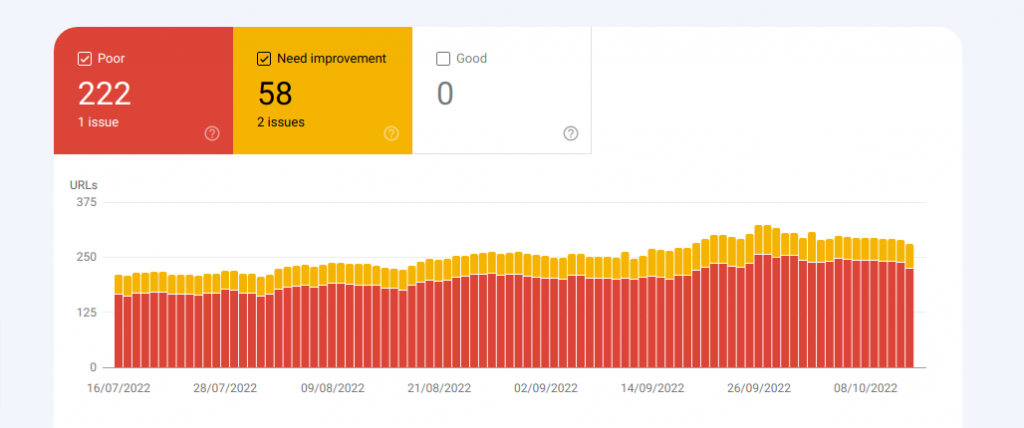
That’s how you can use Google Search Console for SEO.
Check If Your Site Got Any Penalty
If Google sees your website has gone against its guidelines. It will penalize your website or may even remove your website from indexing.
Such penalties are marked due to spammy backlinks made on your site, publishing duplicate content, keyword stuffing, and many more things.
If your website got hacked… Google will remove it from indexing for that too.
Or even if Google finds the website having low-quality comments, you have a chance of getting penalized.
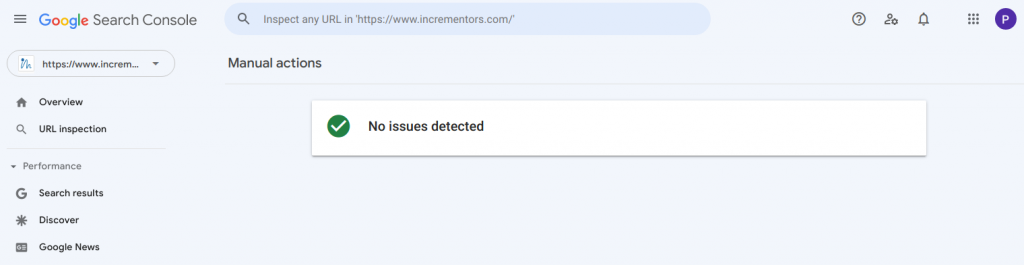
However, you can check it from manual actions in your GSC.
Let me show you how:
Click on manual actions in GSC…
You will see a screen like this… if there is no issue on your website.
Check Out Mobile And Desktop Traffic
To stay ahead of your competition, you must analyze mobile and desktop traffic and optimize your website accordingly.
And you know what… most of the companies makes this mistake by focusing only on the website traffic and not on mobile traffic…
Despite the fact that, 64% of searches are conducted on mobile and only 36% of searches are conducted on desktop.
Now, the biggest question here arises is,
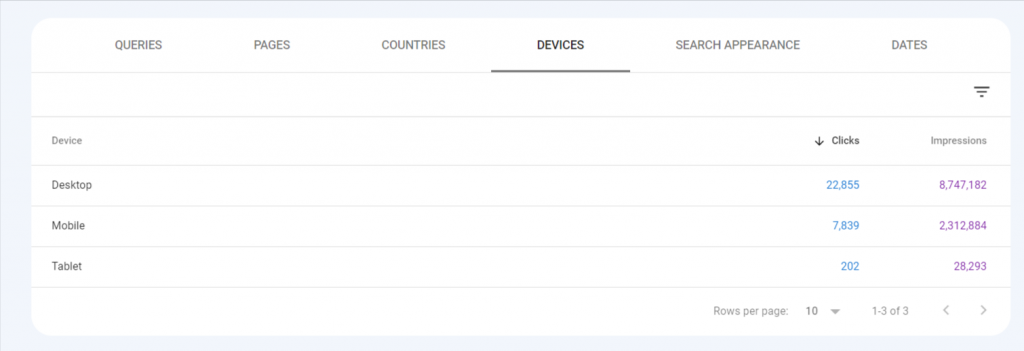
How do you analyze if the traffic that you are getting is from desktop or mobile.
This is simple…
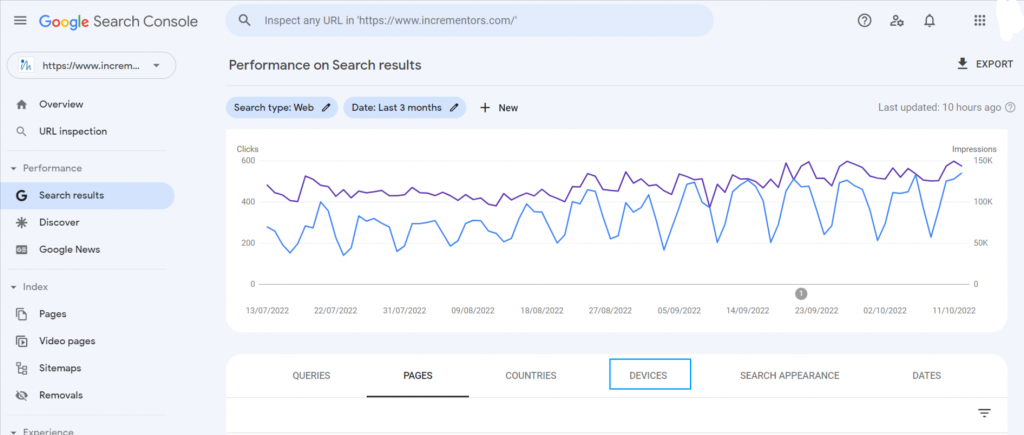
In the performance report, there is an option for devices as well.
By clicking on devices, you can check the no. of clicks you are getting from the devices.
Conclusion
So, this is how you can use Google search console for SEO.
In order to be successful at SEO, you must know how to use Google search console.
Google search console is an insight for your website and can help you with the SEO of your website.
It provides such valuable data that it may help your website in the future get leads and clients.
If you have any doubts or queries, you can just comment down below in the comment section, and I will reply for sure!
FAQs
1. How does the Google Search console support SEO?
Google search console is an important element for SEO. it shows you how search engines are behaving with your website. It makes it easier for you to check out the issues that your website may have so that you can improve them in the future.
2. Is Google Search Console accurate?
Google search console is a tool provided by Google. So, of course, you can trust it as GSC shows you accurate data but differently displayed.
3. Is Google Search Console part of Google Analytics?
Google search console and Google Analytics is a different things. Google search console shows you how search engines are behaving with your website while Google Analytics shows you how users are behaving with your website
4. Is google search console accurate?
The GSC is accurate in showing data about your website. It is based on the actual search results shown to the users.
Want to rank #1 on Google?
Get a free SEO audit and discover exactly what's holding your website back.

Shiv Gupta
Founder & CEO, Incrementors
Shiv Gupta is an award-winning digital marketing strategist and creator of the 'FastTrack CRO' methodology. Recognized as a Thought Leader in ROI-Driven Digital Marketing by Business Connect, he leads Incrementors, which Forbes has recognised as one of the Top SEO Agencies in the World. Incrementors implements integrated growth marketing strategies based on data and ROI measurement. Gupta helps brands of all sizes scale effectively through comprehensive solutions—from AI-driven top-funnel marketing to SEO, email campaigns, and conversion optimization.