

There are lots of paid and free keyword research tools available in the market, but the good news is Google itself provides free keyword research tools to webmasters. For accessing keyword planner you just need to have a Google account and nothing else.
Unlock Your Free SEO Audit Now
Unlock your website’s full potential! Get a FREE SEO Audit with 60+ checks. Don’t miss insights for online success.
Get a Free AuditBefore you learn how to use this tool it’s little important to know what “keyword” is. The keyword is the query you search in the search box, for example, If I search “what is digital marketing” then this would be my keyword.
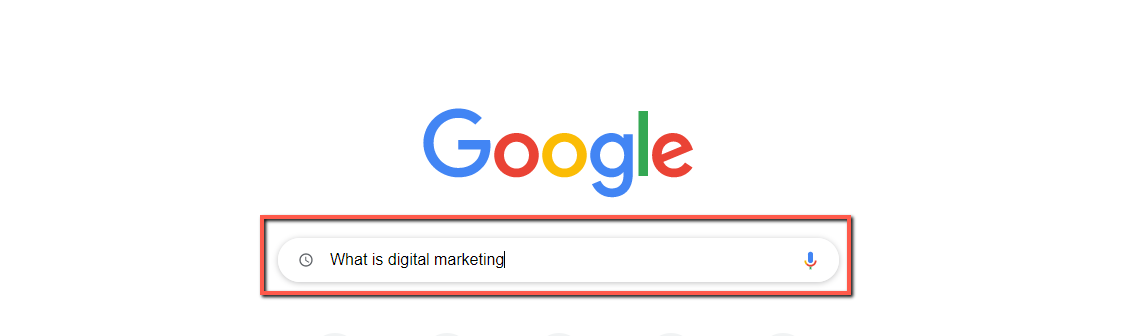
Most people search millions of queries regularly in the Search Engine for getting answers to their questions. And Google tries to show the results as per interpreting the intent behind the searcher keywords.
From that, you can understand how important this tool can be for webmasters because it allows them to know the searcher intent that helps them to create content based on that intent.
Related: How to Find the Right Keywords for Your Business?
Get Google Keyword Planner Access
To use GKP tool you just need to have a Google account and if you don’t have any, you can create it by clicking here. After creating your Google account, move on to this webpage from there you can directly create your Google Ads account without going through the usual tedious route.
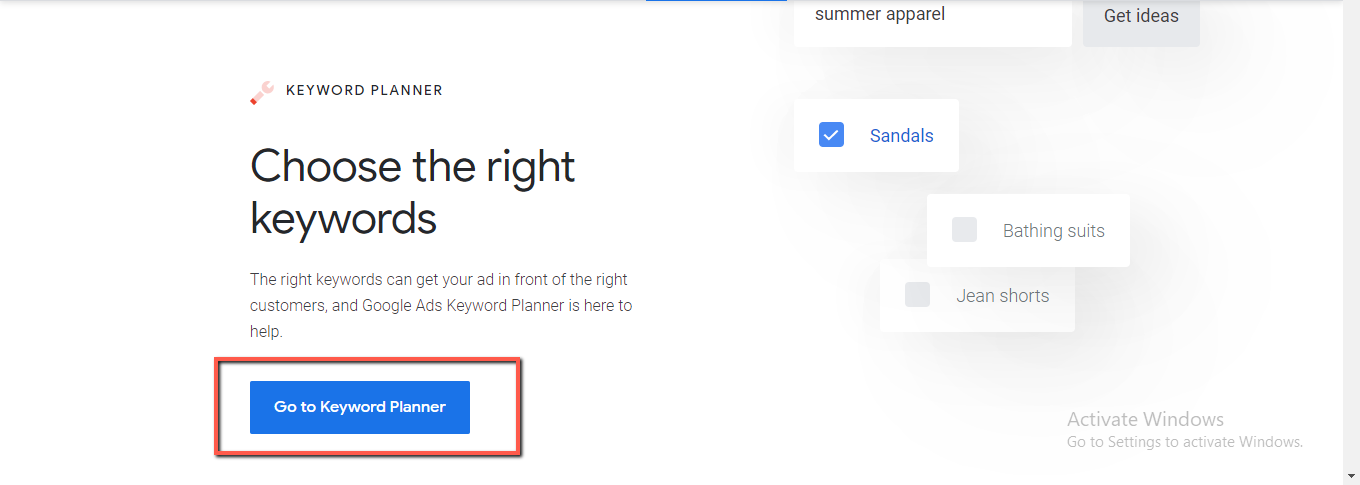
Click on “Go to Keyword Planner”.
When you click on the “Go to Keyword Planner” option, there will be a page with three options: “Get more calls”, “Get more website sales or sign-ups” and “Get more visits to your physical location”.
These options are for those who want to automate the process of ad campaigns by giving responsibility to Google for the process, Google charges service fees for that process.
“Switch to expert mode” is another option that is just below the above three options, it’s for those who want to take complete control of their ad campaigns.
Now, Click on “Switch to expert mode”.
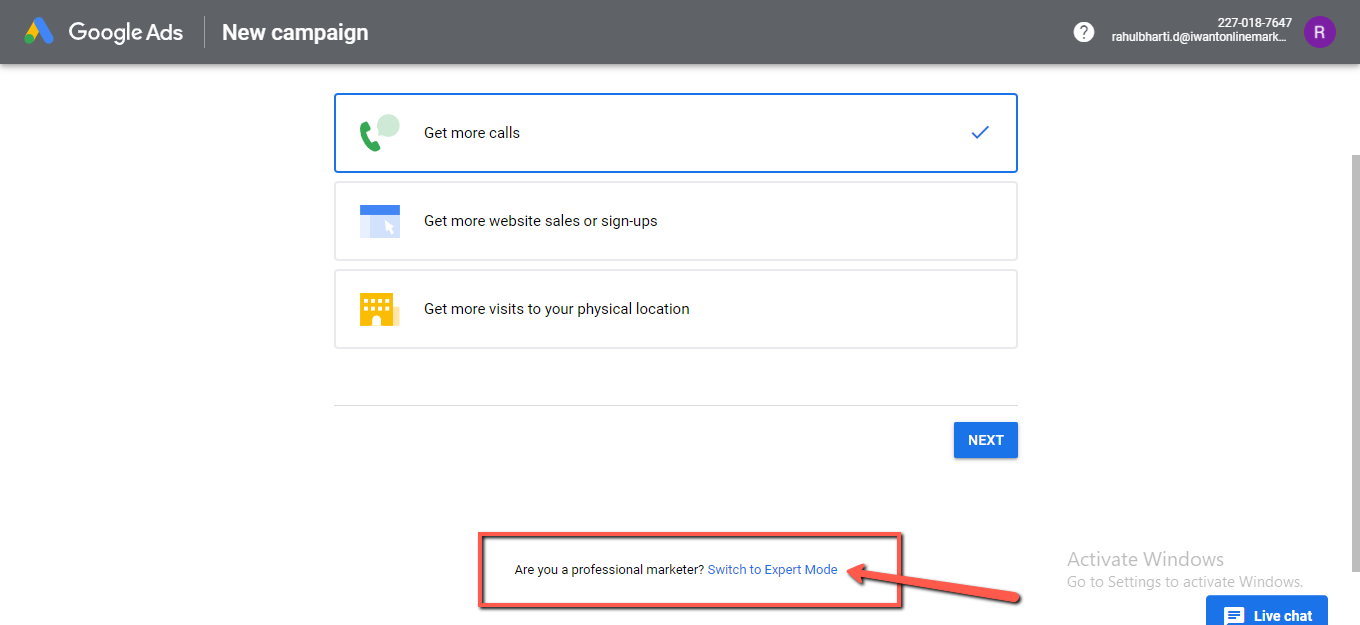
After clicking on “switch to expert mode” the next page will open then click on “Create an account without a campaign”
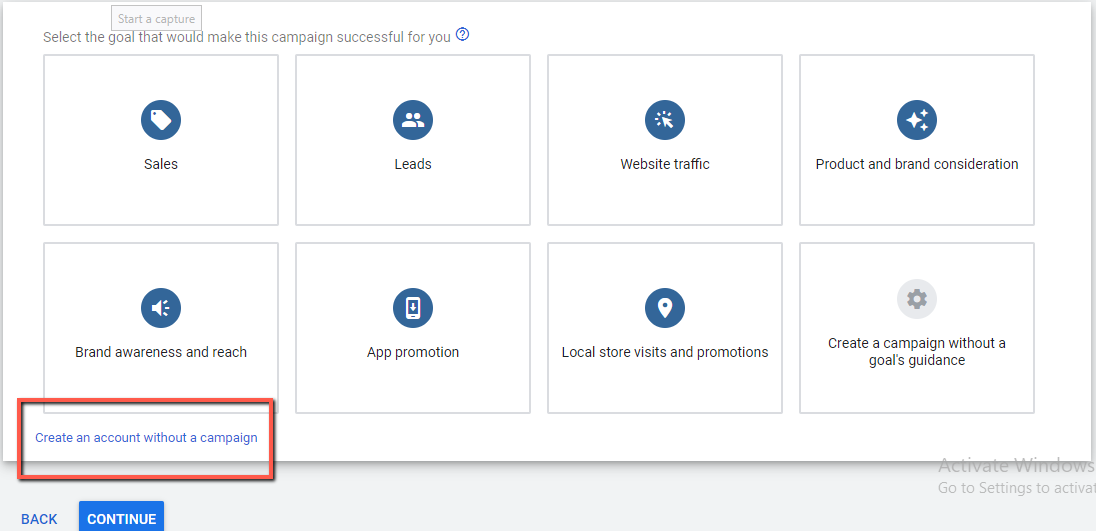
Finally, you will be taken to the business details page after filling your details your Google ads account will be created.
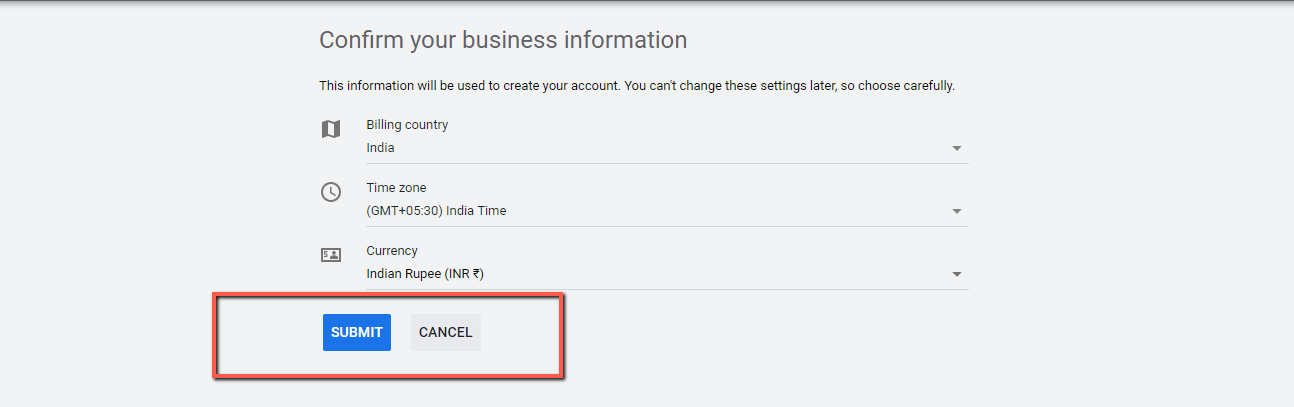
Now click on submit button you will be taken to congratulation page.

Hooray, you have created your Google Ads account for free, now click on the “Explore your account” option.
Now select “Tools” icon and select “Keyword Planner” from drop down.
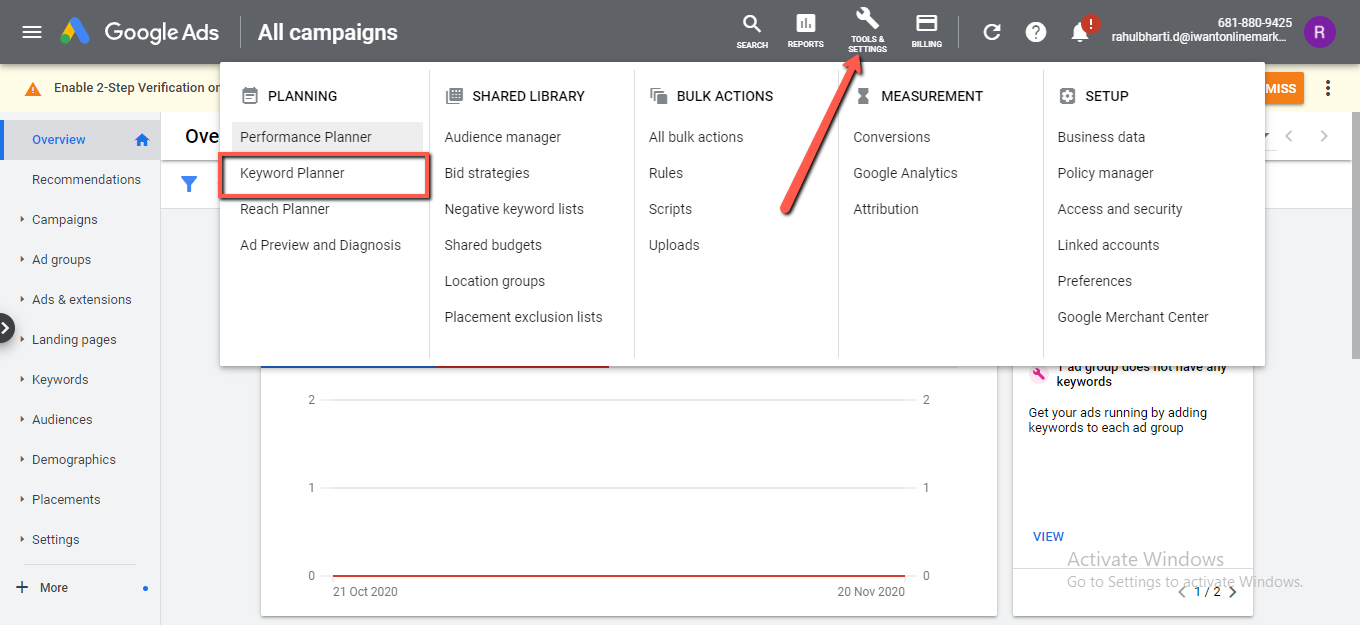
Now you have complete access to the Keyword Planner Tool. You don’t need to add other details or run ads campaigns, it’s completely free to use.
How to Use Google Keyword Planner
Google keyword gives you two options to get started. The first is “Discover new keywords” and second is “Get search volume and forecasts”. We will discuss both in detail but let’s start with “Discover new keywords” first.
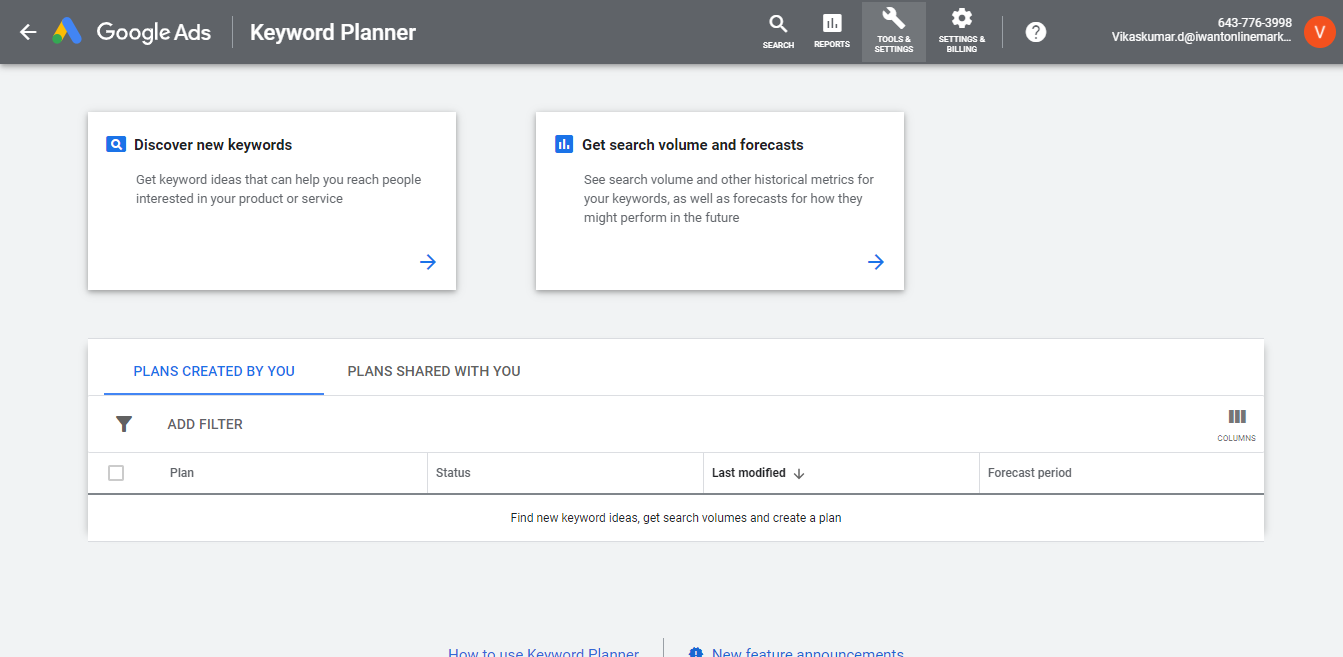
Discover New Keywords
This feature is ideal for finding new keywords related to your business.
There are two ways to discover new keyword ideas.
Start With Keywords
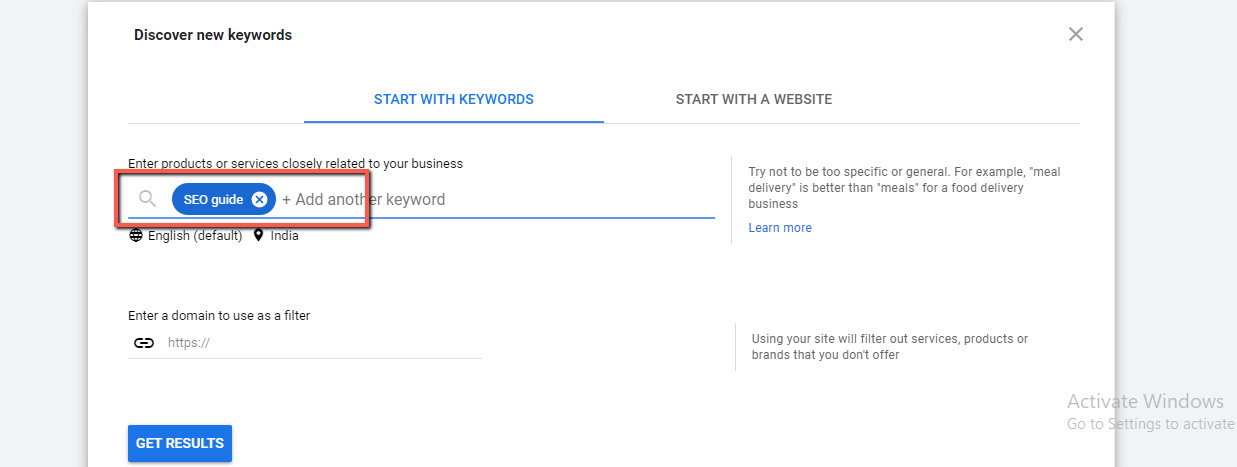
Here you just need to enter keywords related to your products or services. You can separate multiple phrases with a comma and space.
You can enter your website in “Enter a domain to use as a filter” field, by doing so you will tell google to exclude keywords that your business doesn’t offer.
Once you enter the Keywords in the search field, it will lead you to the results page, which will show the result of the main keyword and its variation with average monthly search volume, the difficulty of the keyword, and the average bids.
Let’s take a look at the results for the keyword “SEO guide”.
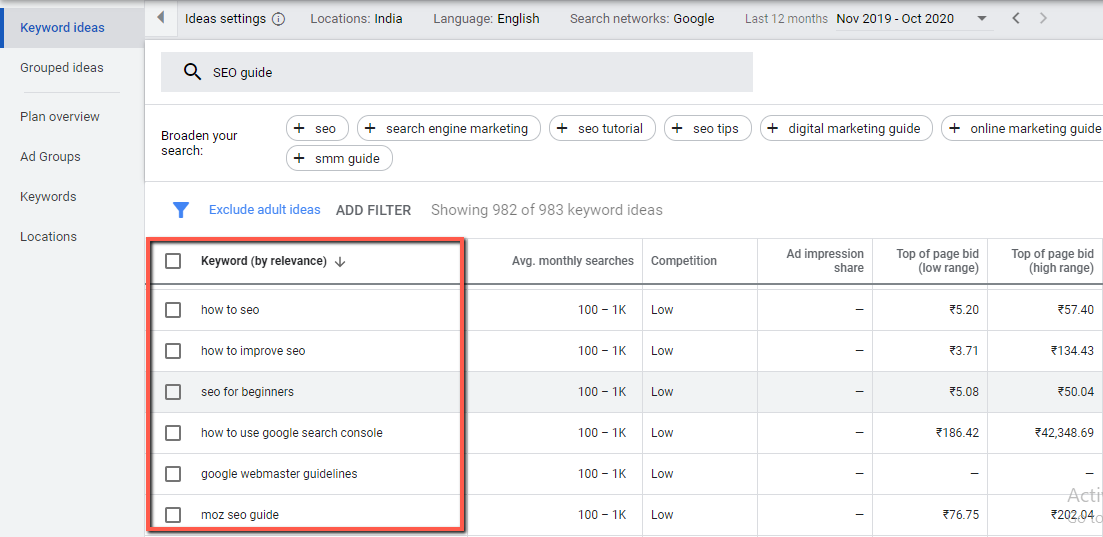
You can see that keyword planner showing results for my main keyword with its variation and all other relevant information of that keyword like average monthly search volume, competition, and the bid amount.
Start With A Website
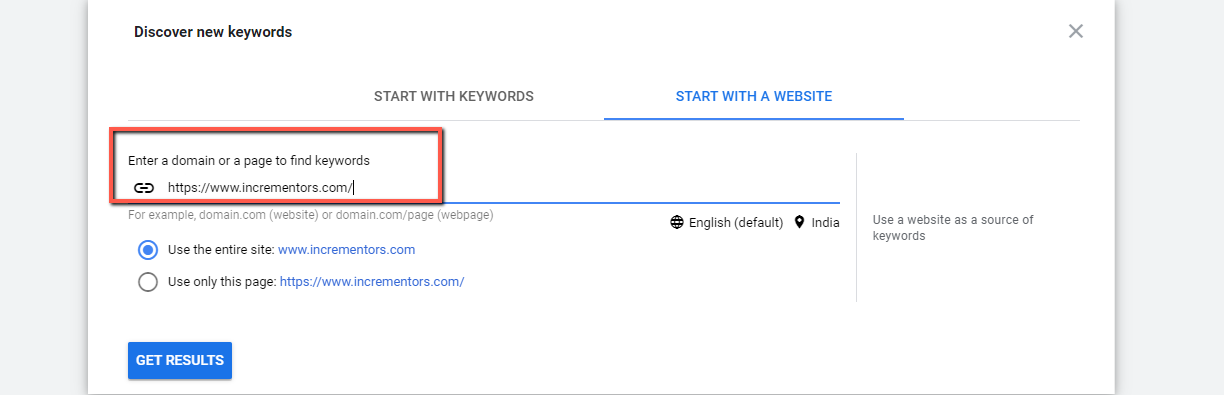
I love that feature and it allows me to find out the top keyword of my competitors. Simply you just need to enter the website URL and Google will give you keywords according to the content on that website.
Whether you want to find keyword ideas from the whole website or from a particular page this tool can help you to do both.
Here in this example, I used my own website incrementors.com.
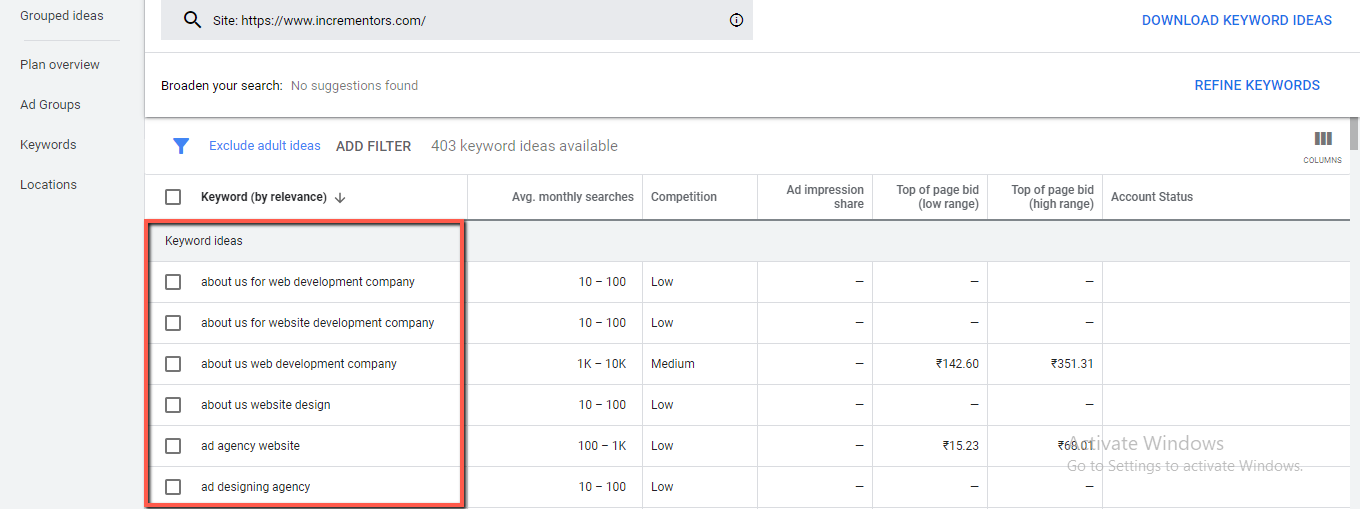
Here Google is showing keywords closely related to my business.
Get Search Volume and Forecasts
This function shows search volume and other historical metrics for your keywords, as well as forecasts for how they might perform in the future.
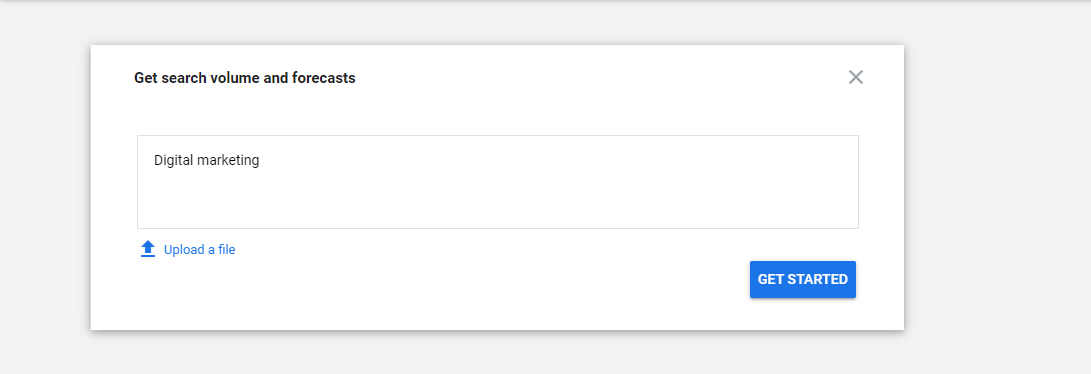
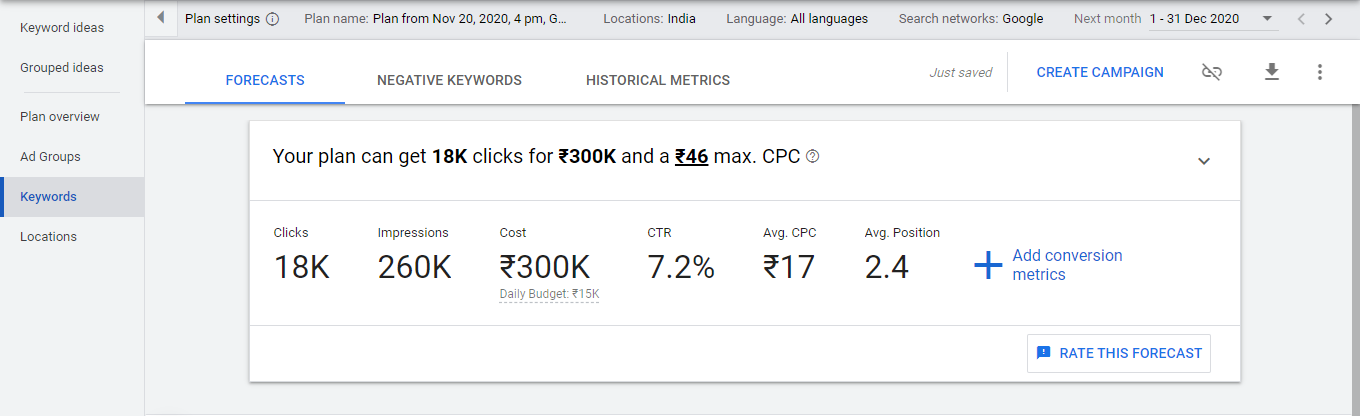
If I enter “what is digital marketing” and click on “Get Started”. It will show the expected clicks and impressions this keyword can get with the entered query in the upcoming 30 days.
You will also see the estimated costs, CTR, and CPC.
In the “Historical Metrics” tab, you can see the next 12 months’ average search volumes for your entered keywords.
Keyword Planner Hacks
Get EXACT Search Volumes Data
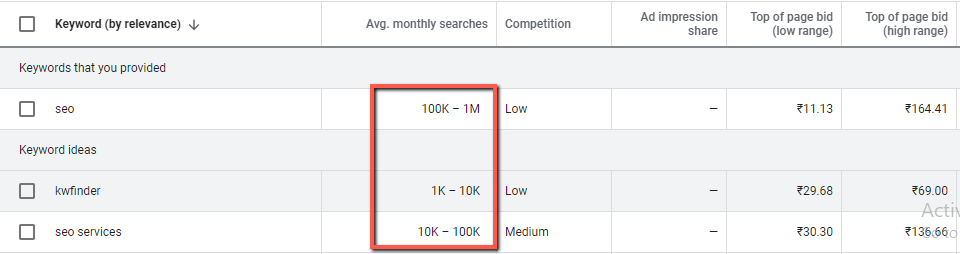
If you search for any keyword in Google keyword planner it will not show you exact keyword search volume but show you results in the range of 10k-100k which is very broad to target the keyword for your content.
But if you are running an active Adwords campaign, then it will show you the exact search volume.
Like in the image below, both average monthly searches are in the range of 100K-1M.
But, I am going to share with you a very handy trick to tackle this issue.
For getting the exact keyword search volume goto the “search volume and forecasts” section. Then simply enter the keyword or keywords you want to see the search volume for.
Here in this example I used the “digital marketing” keyword.
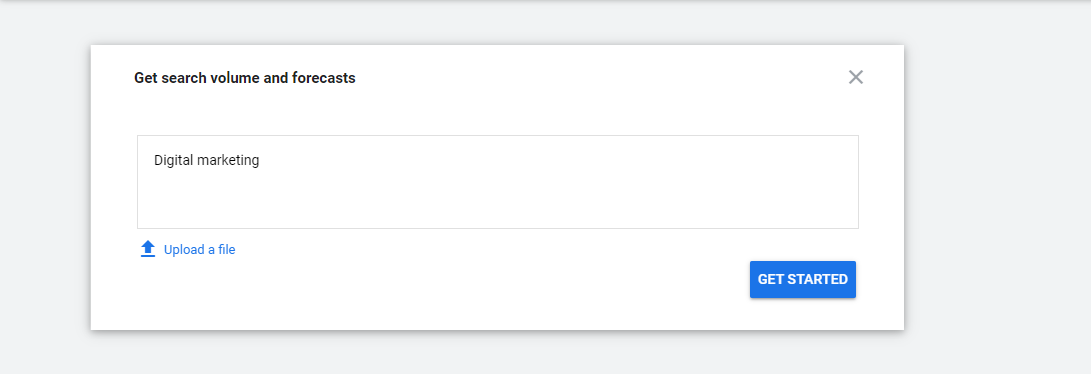
Now Google is showing the future performance of that keyword in ad campaign
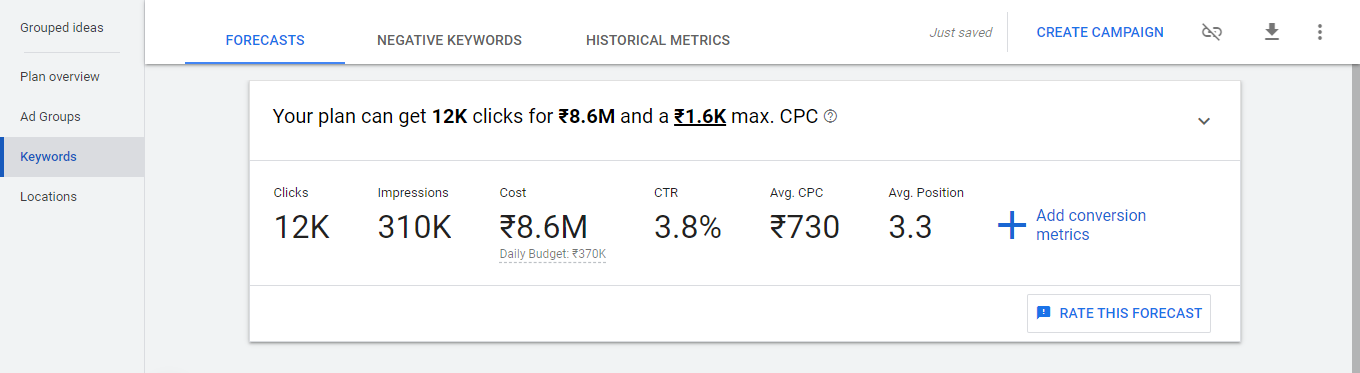
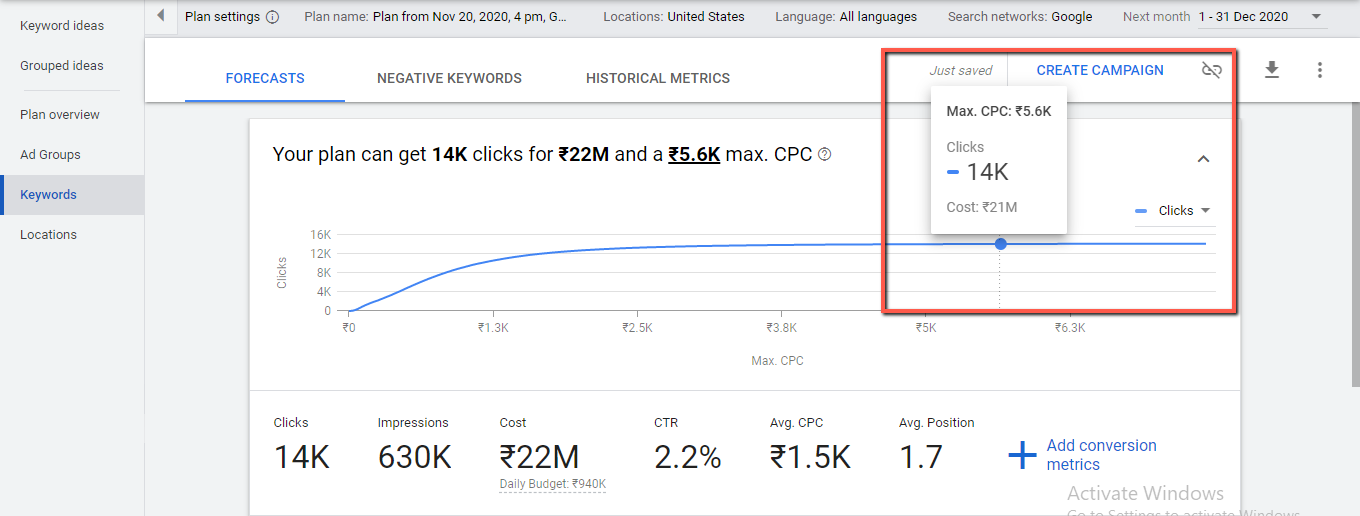
The only thing you need to make sure is setting max CPC value as high as possible. So that you can get the result of the max impression this keyword brings for you if you run an ad in google ads.
For selecting maximum CPC click on the dropdown then it will open a line graph, from their select max CPC.
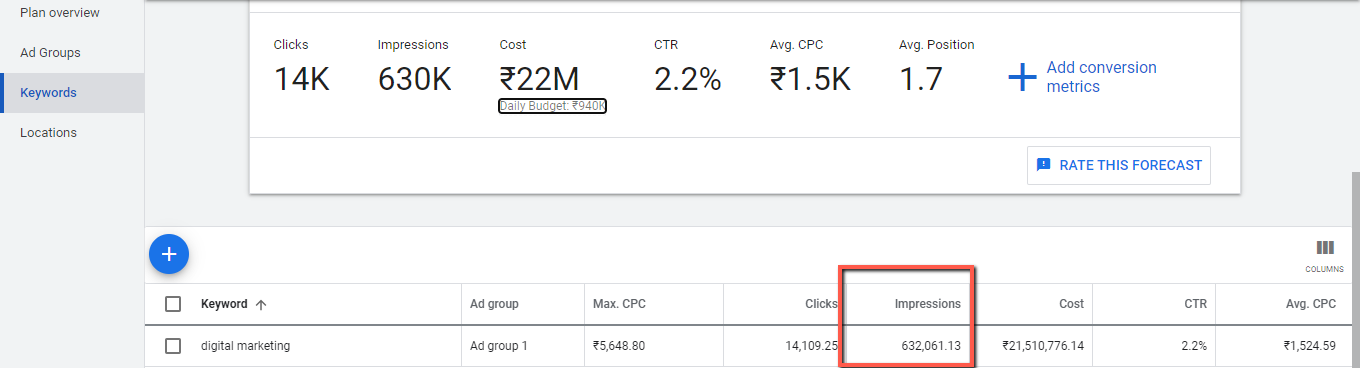
Then Google will show results below like the number of impressions this keyword will get on the search engine result page for a given CPC amount.
It means the number of people searching for that keyword in the Google search box. By following these steps you will get the exact keyword search volume.
Check Keyword Search Volume as per Local Area
You can also edit the details like location to get more specific data.
If you are a local business owner or service provider then the broad location results in a keyword planner not going to help you a lot.
Let’s say you’re a local bakery business owner so it’s quite obvious that you need to target local customers.
For that you need to be specific with your location, you just need to combine it with the above hack that I shared to get the exact search volume.
Use location filter to sort results as per your desired location and you will get the estimated impression for your keyword in that location, it’s that much easy.
Related: Local SEO Checklist
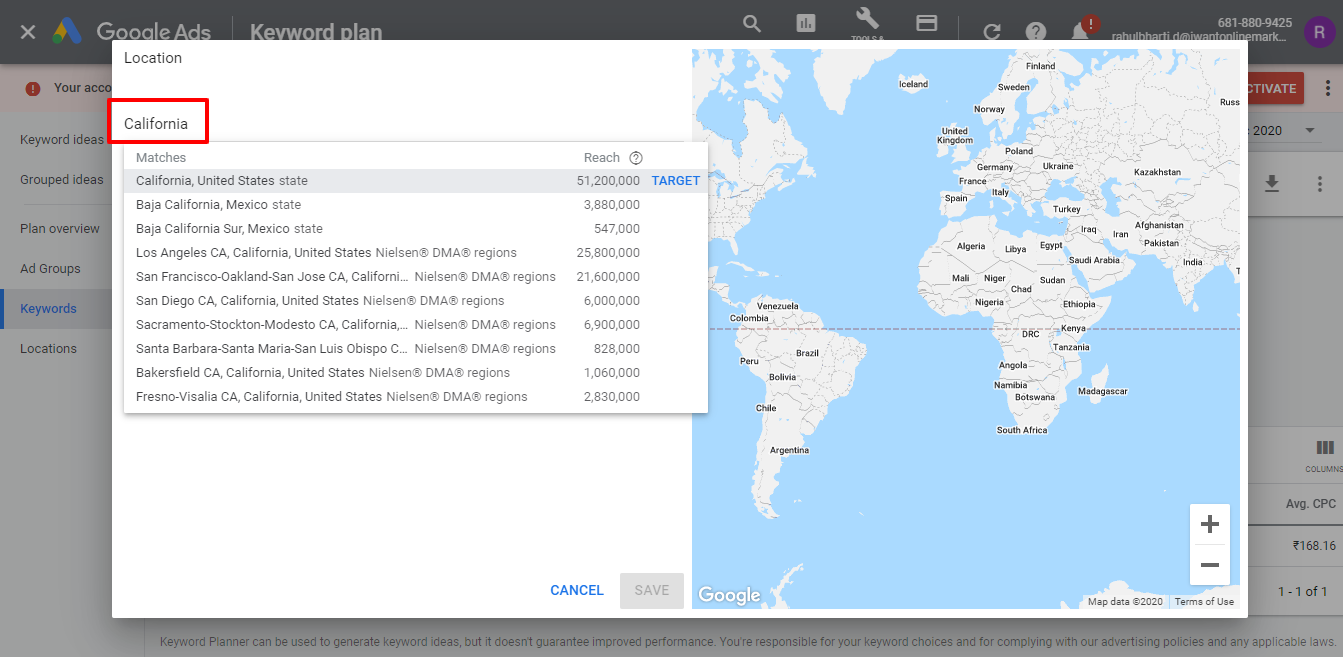
In this example, I have selected California you can see how the results below, now GKP narrowed the impressions for that location.
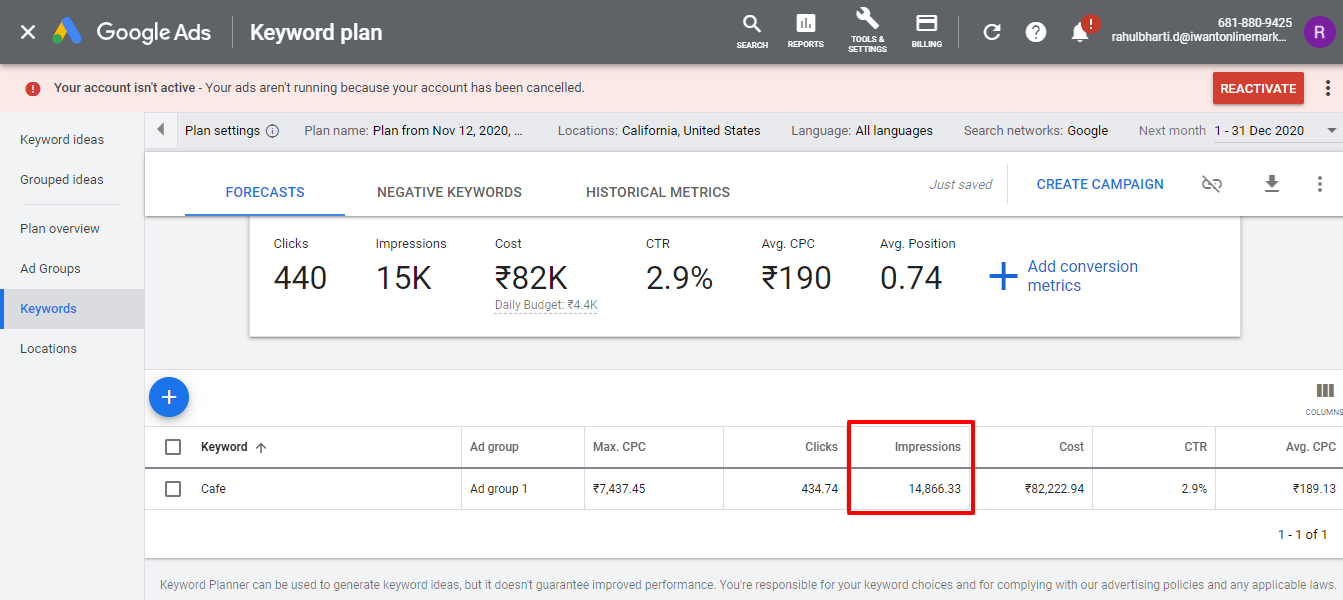
And the great thing is this isn’t limited to a local business you can use this to know about highly important areas for your business as well.
Let’s see how, first pick a keyword on which you want to rank for, then follow the same above hack which we used for exact search volume.
In the location field remove the selected location and save it.
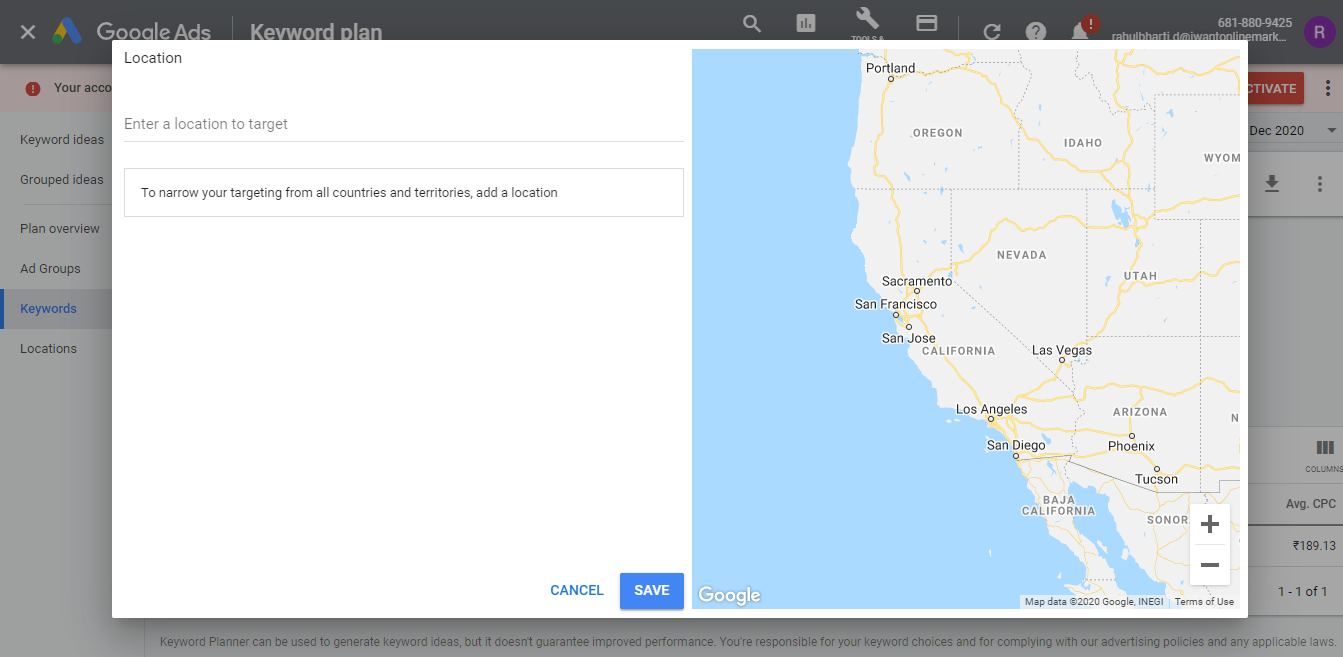
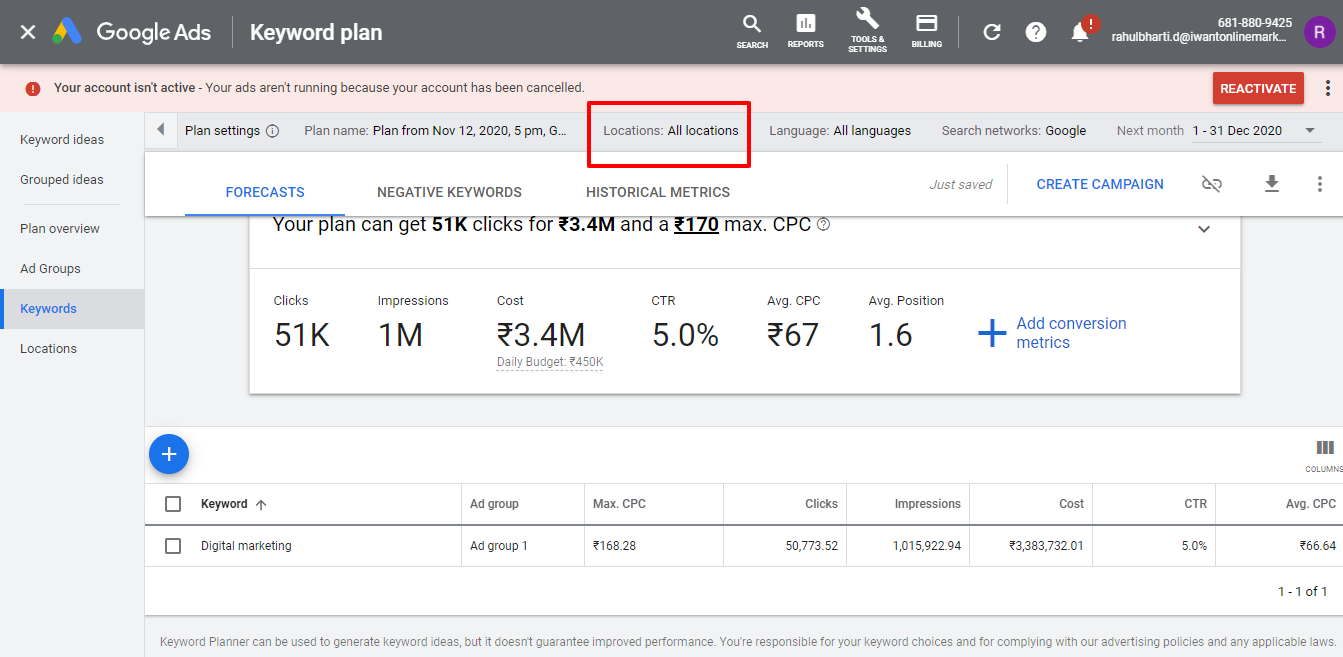
This will automatically save your location as “All location”.
Then select “Plan overview” in the sidebar of the dashboard.
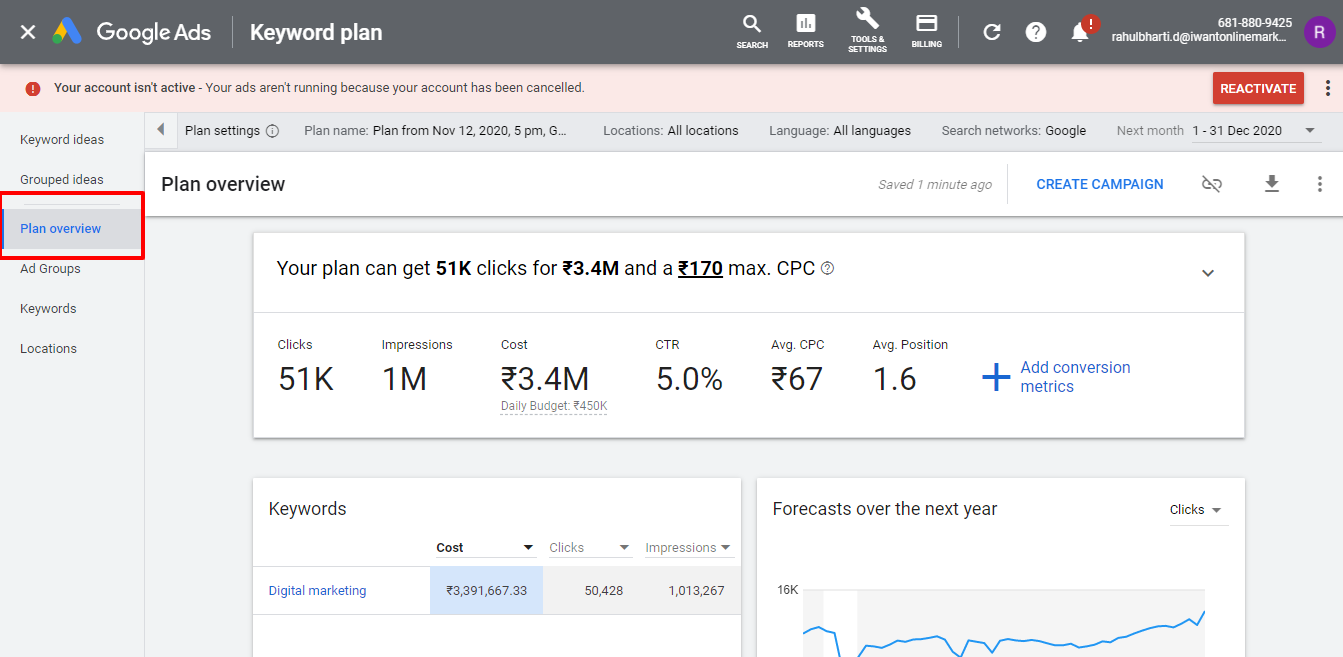
Below you can see the pie chart that will clearly show how popular the term digital marketing is among countries around the globe.
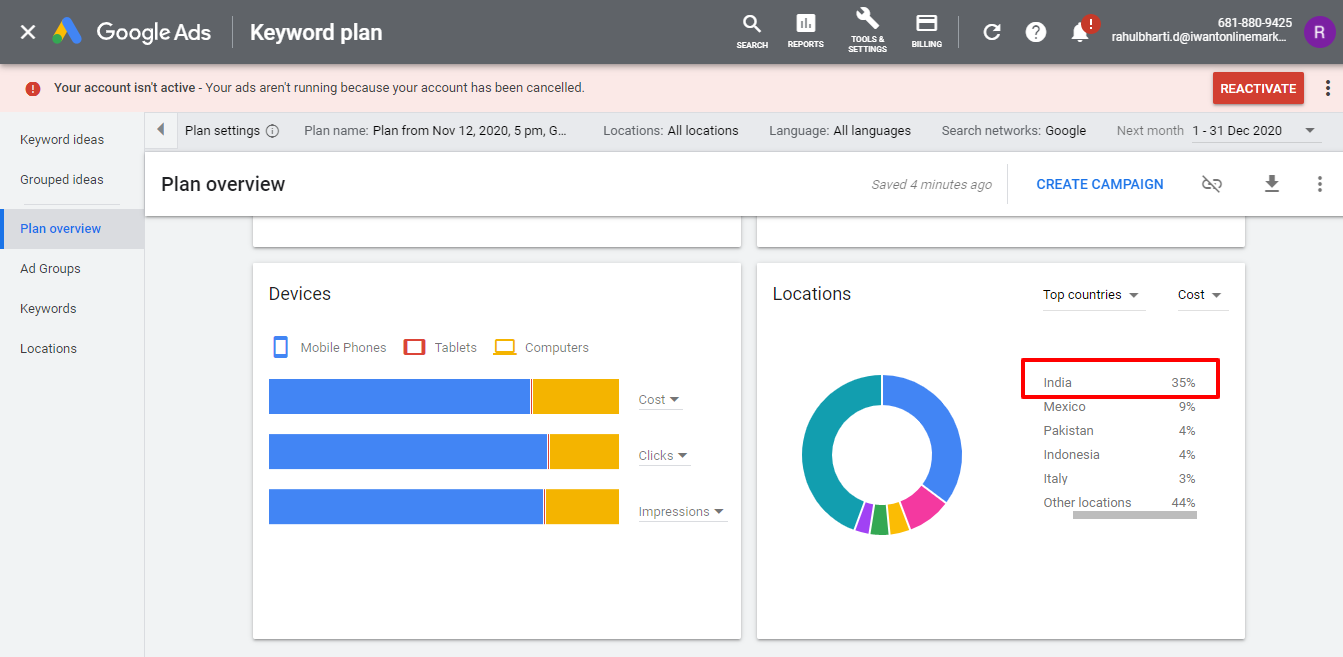
Because this keyword is very popular in India so I will select it in my location field to get the data about its popularity based on cities.
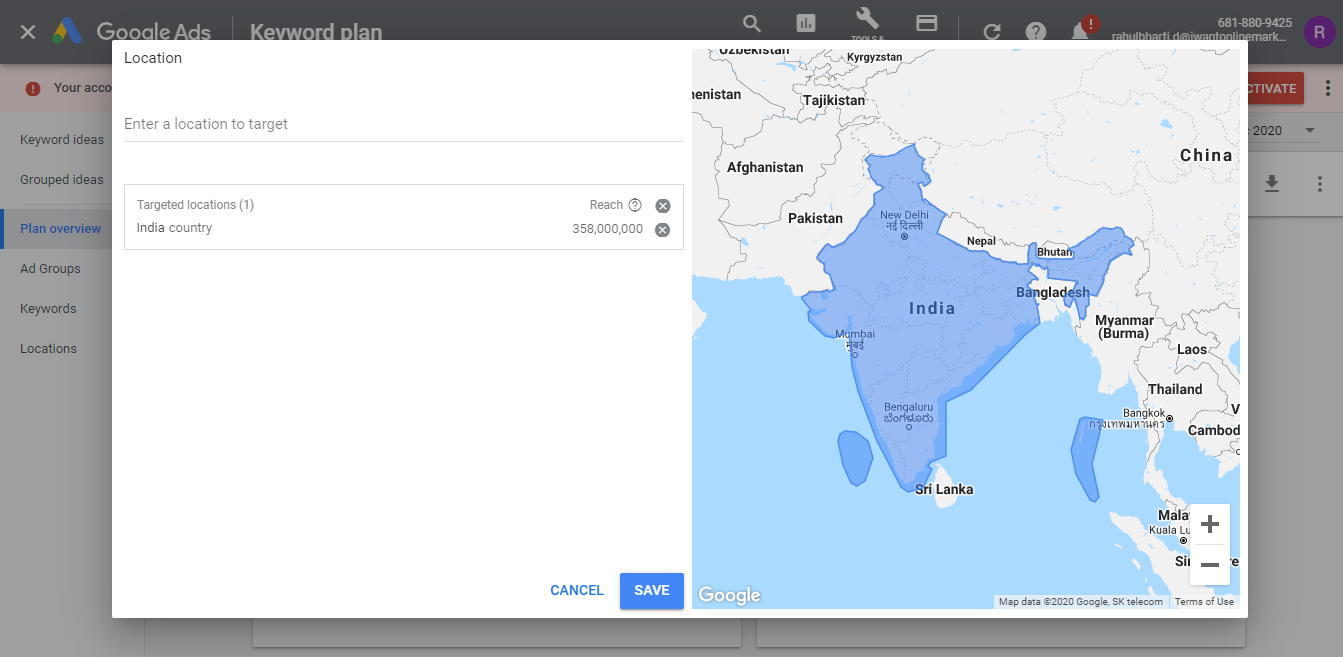
Then I can further narrow it down based on cities as per my needs.
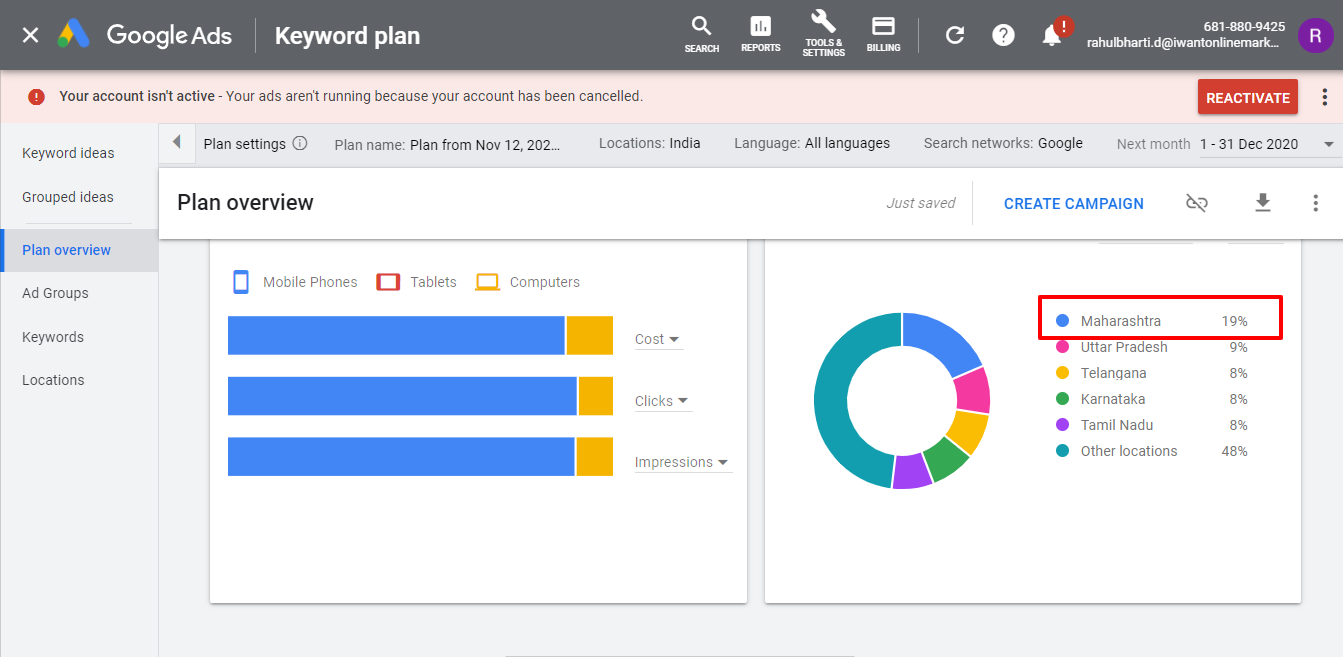
So you can see how handy this tool can be for SEO pros who want to create content that satisfies readers’ demand, without further ado you can integrate this strategy for getting effective results.
Find Out Devices People Are Using
As you all know people’s content consumption habits changed drastically over the recent years due to the easy and affordable internet connectivity, the whole globe became one global virtual village.
People access the internet through various devices such as a desktop, tablet, smartphones but in recent times use of the smartphone increased exponentially.
So it’s a must for business owners to know about what type of devices their customers are using so that they can create content as per the requirement.
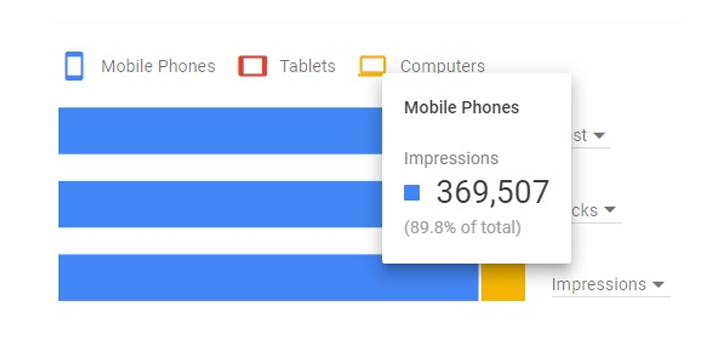
This is available in the plan overview report and categorized into Mobile, Tablets, and Computers.
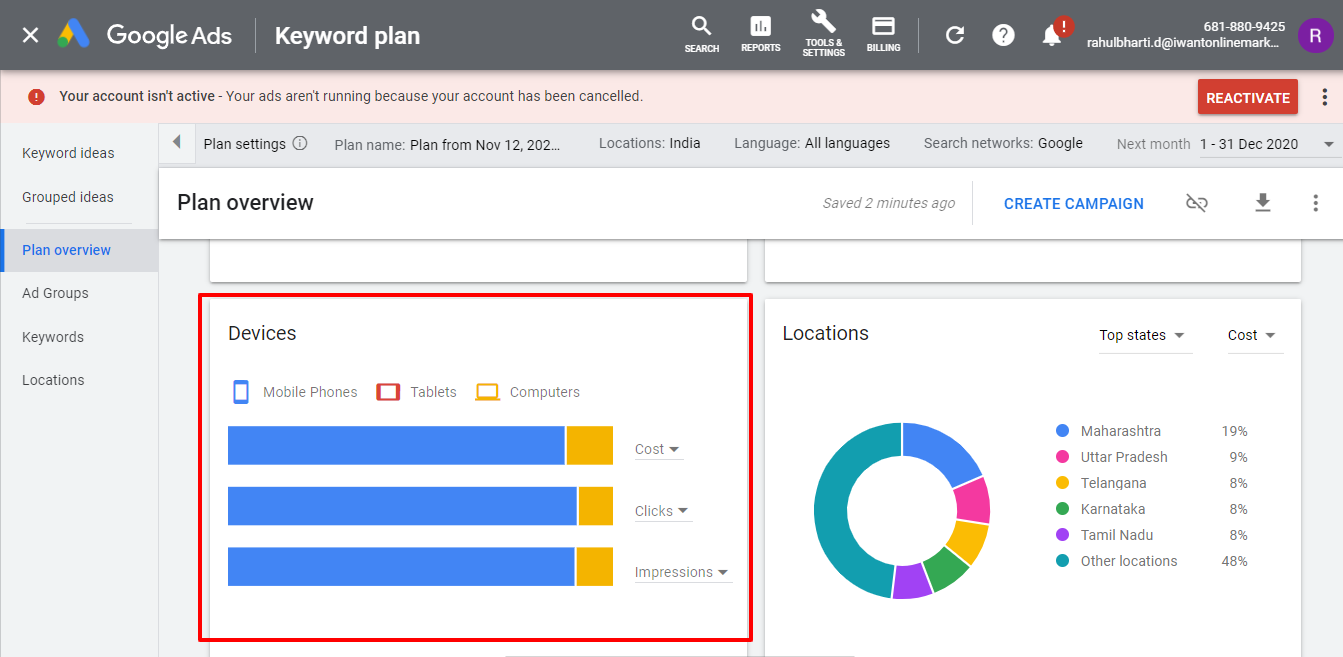
You can also get the exact numbers and percentage of people impressions on each device, just by hovering your mouse over the graph. So the keyword “Digital marketing” will result in 369,507 impressions from Maharashtra India on mobile devices.
And the same keyword will bring 41,079 impressions from desktop users.
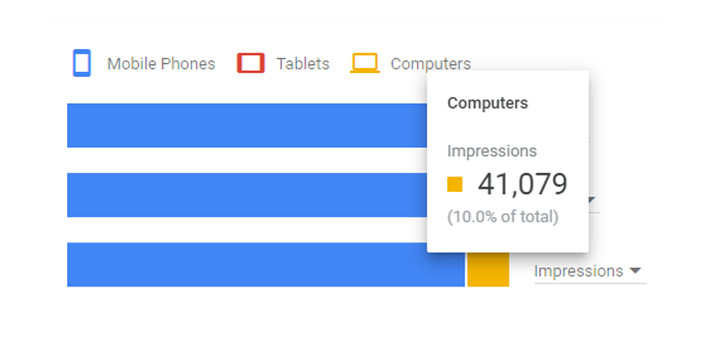
So from the above results, it’s clear for me to tailor my content specifically for mobile users because I will get more eyeballs from mobile users as compared to desktop.
Filter and Sort the Results
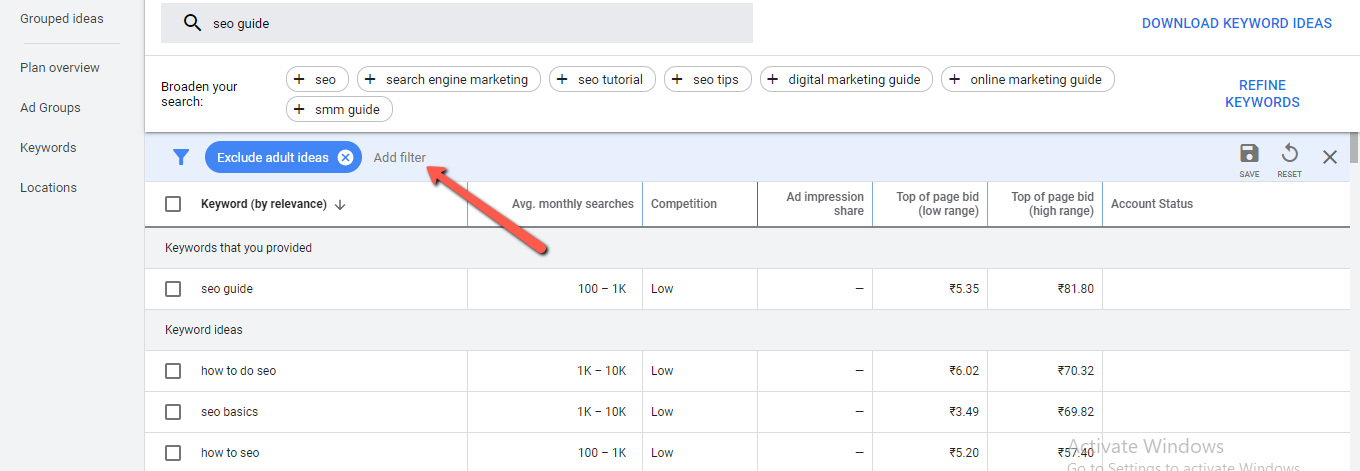
The next important feature of the Keywords tool is “Add Filter”. This allows you to filter results as per your needs there are lots of other filter options also available, I am going to start with filter “Keyword”.
Here you can add certain keywords that your target keyword must contain by using “contains” option from the dropdown and can exclude certain keywords by using “text doesn’t contain” option.
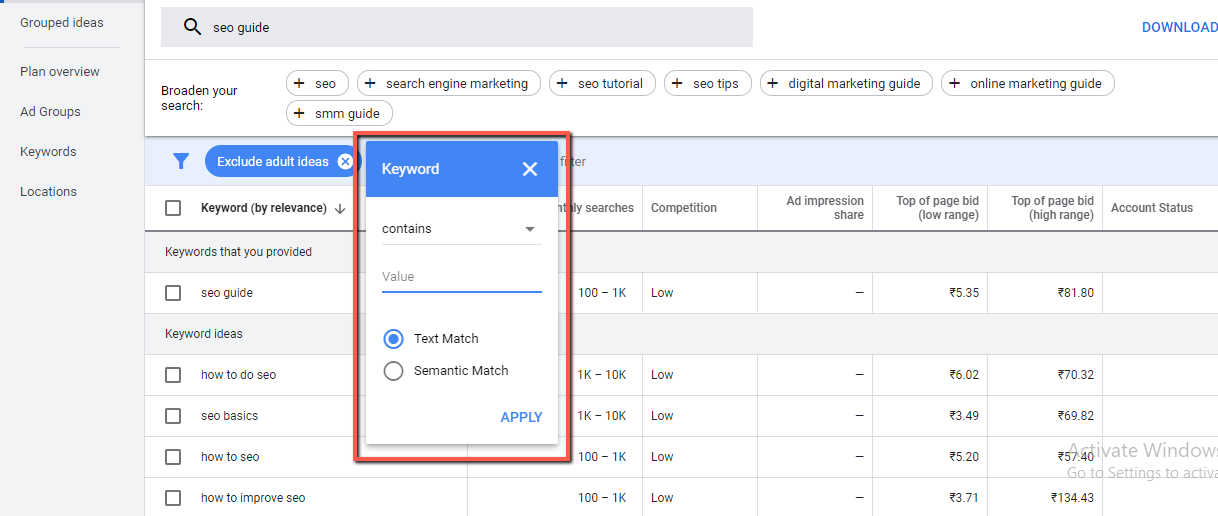
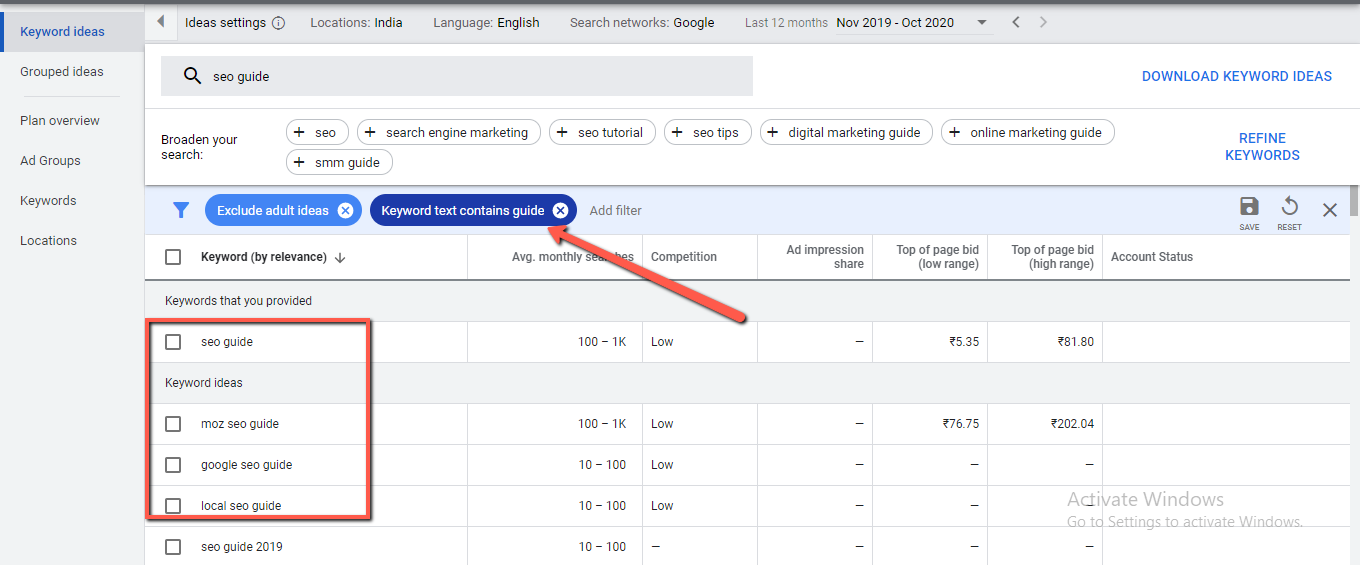
Here in this example, I used text contained with the “guide” keyword.
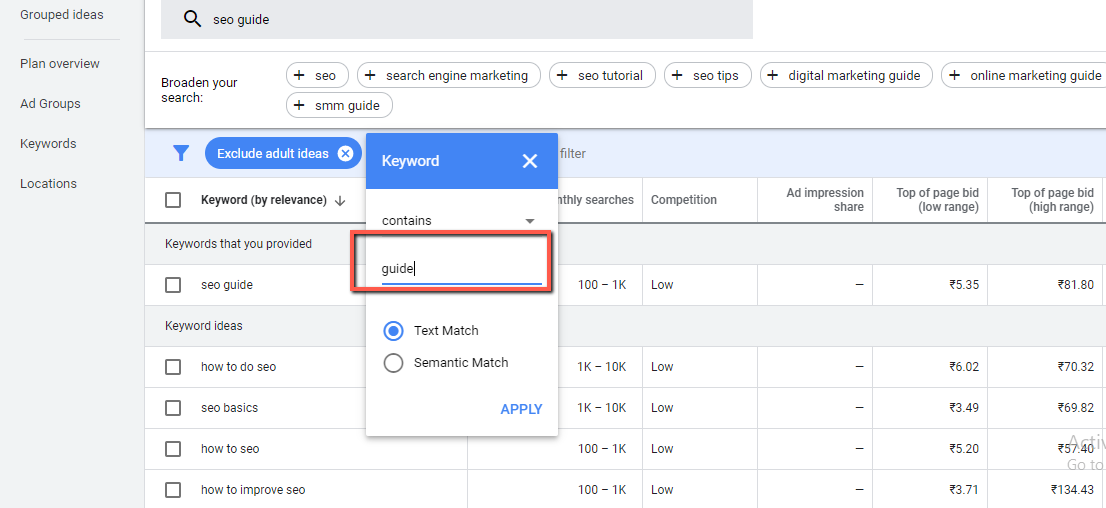
Now Google is showing the result as per my instruction below.
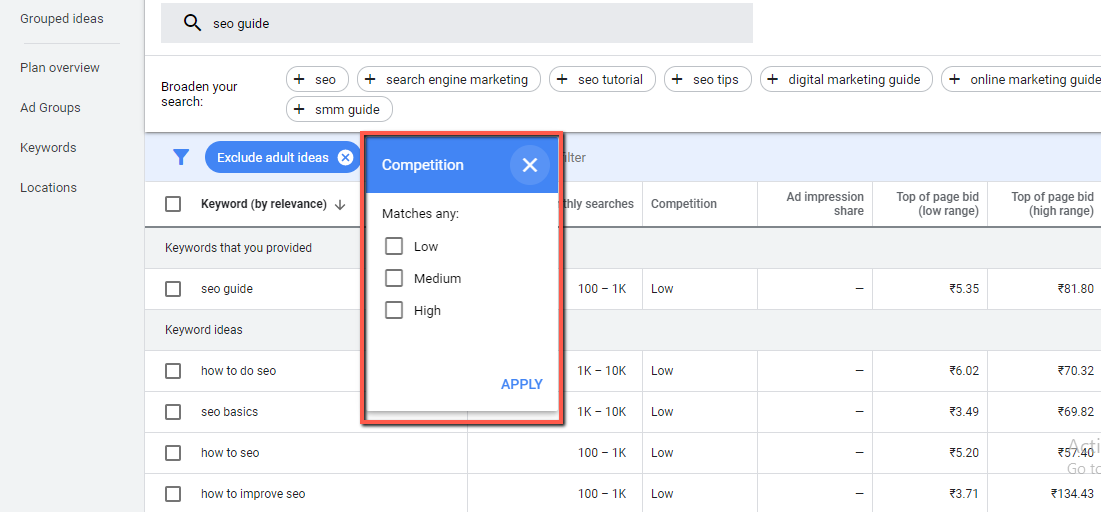
Another filter which you can use is “competition”, here you can get the results based on high, medium, and low competition on that keyword. That’s very handy when you are focused on narrowing down your results.
Use New Refine Keywords Feature
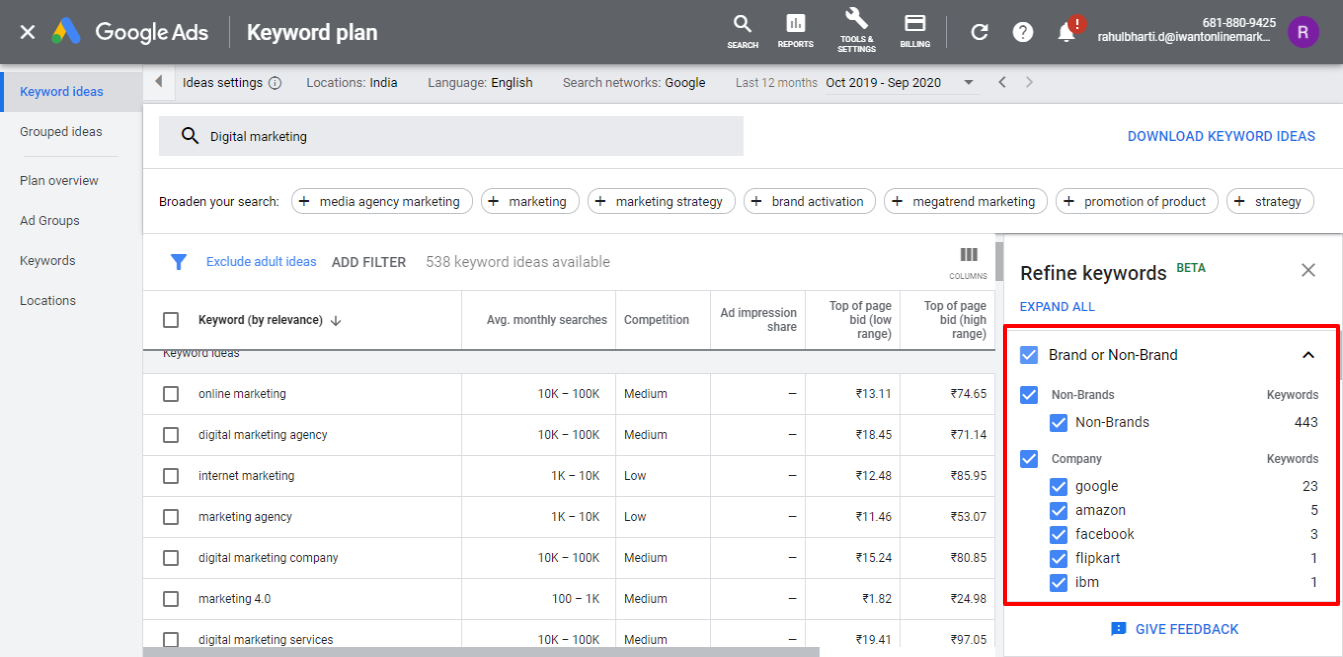
When you search a keyword in “Discover new keywords” option then alongside results on the right-hand side it shows the option of “Refine keywords”. This is very handy when you want to narrow your keywords research to get what exactly you want.
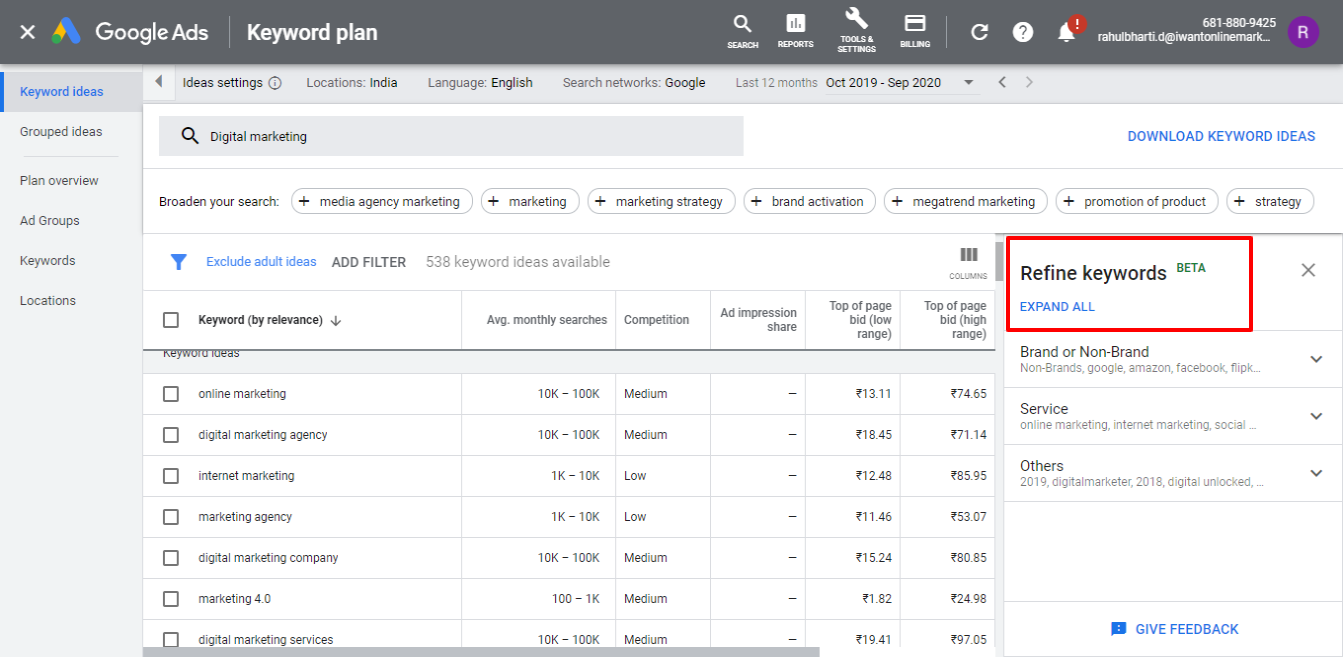
You will see 3 categories named “Brand or Non-Brand”, “Service”, and “Others”. If you click on the dropdown list will open up, from there you can choose from all the available options.
If you check the box, this means keyword planner will include that word for your keyword if you uncheck then it will exclude the word from results.
Final Thoughts
Google Keyword Planner is a useful tool, if you integrate this with other keyword research tools then definitely it will help you to create content that satisfies user intent, I think that’s what Google also wants from webmasters that’s why they are providing this invaluable tool for free.
Want to rank #1 on Google?
Get a free SEO audit and discover exactly what's holding your website back.

Shiv Gupta
Founder & CEO, Incrementors
Shiv Gupta is an award-winning digital marketing strategist and creator of the 'FastTrack CRO' methodology. Recognized as a Thought Leader in ROI-Driven Digital Marketing by Business Connect, he leads Incrementors, which Forbes has recognised as one of the Top SEO Agencies in the World. Incrementors implements integrated growth marketing strategies based on data and ROI measurement. Gupta helps brands of all sizes scale effectively through comprehensive solutions—from AI-driven top-funnel marketing to SEO, email campaigns, and conversion optimization.